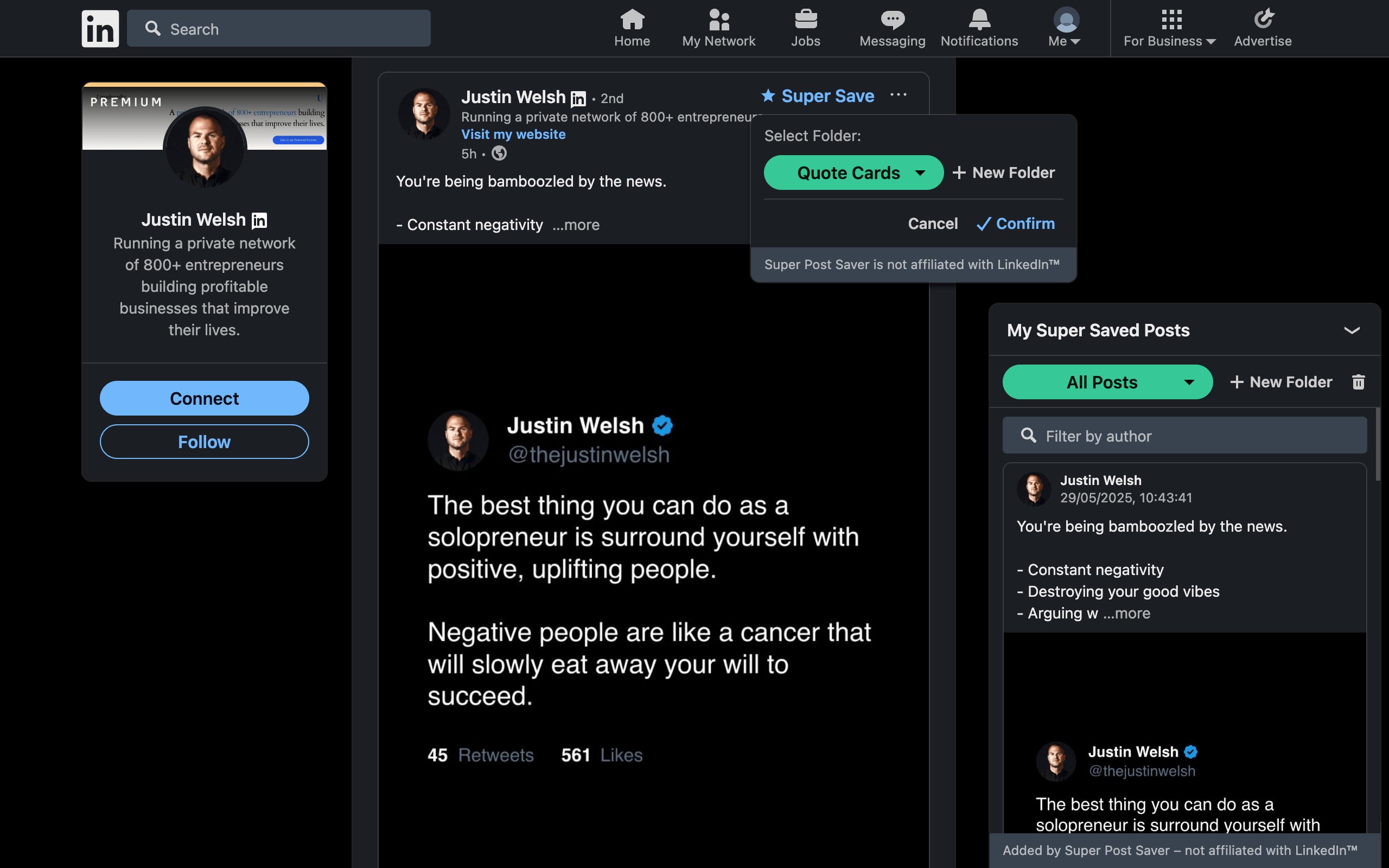
Quick answerFor saving and finding useful posts, choose Super Post Saver. For general writing assistance, Grammarly is the broadest option. For sharing and scheduling from the browser, Buffer is the most relevant of these three.
The best LinkedIn Chrome extension depends on the job you are trying to remove from your workflow. A research tool should not be judged by its scheduling features, and a writing assistant should not be expected to organize a swipe file. This guide compares focused products by their strongest use case rather than declaring one universal winner.
DisclosureSuper Post Saver publishes this guide and is our product. It appears first because this website is about saving and retrieving LinkedIn posts. We identify its limitations and recommend other products where they solve a different job better.
The best LinkedIn Chrome extensions at a glance
| Extension | Best for | Main tradeoff |
|---|---|---|
| Super Post Saver | Saving, organizing, and searching useful posts | Desktop Chrome only; local library needs backups |
| Grammarly | Grammar, clarity, and tone across the web | Not a LinkedIn research or publishing system |
| Buffer | Sharing and scheduling content from a browser workflow | Requires a Buffer account for the publishing workflow |
1. Super Post Saver: best for post research and retrieval
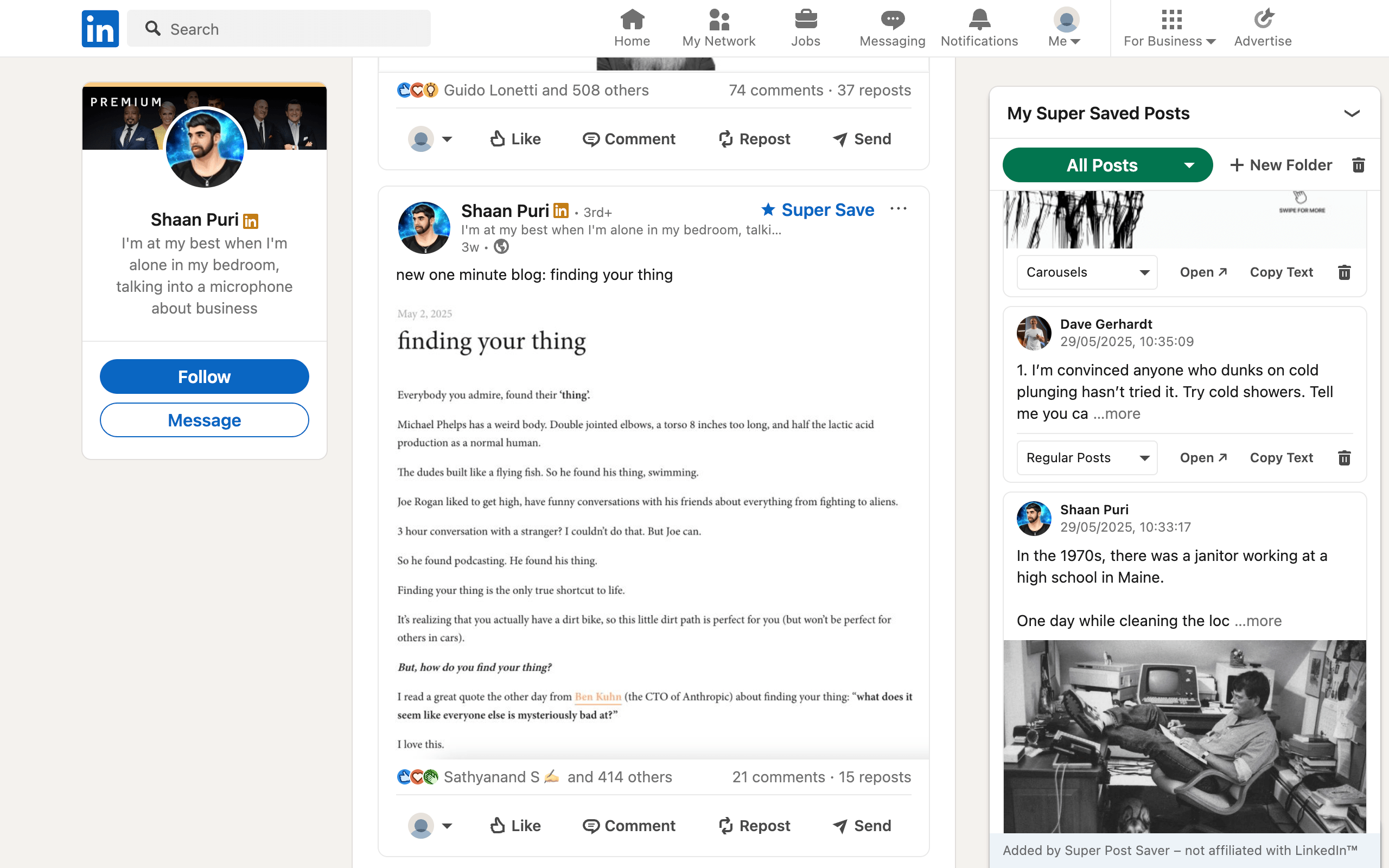
Super Post Saver adds a Super Save action to supported LinkedIn post views. It captures the visible author and post text, lets you place the post in a folder, and keeps a direct reference to the original post when LinkedIn exposes one. Search covers both author and captured post words, with matching phrases highlighted in the result.
Its strongest use case is a private reference collection: hooks, examples, carousels, research, and posts connected to active projects. The library lives in Chrome extension storage rather than a Super Post Saver cloud account. Export and restore are therefore important parts of the workflow.
Choose it when: your problem is not writing the next post but finding the excellent post you saved last month.
Skip it when: you need mobile access, team collaboration, automatic cloud sync, or bulk import of an existing LinkedIn Saved Items archive.
2. Grammarly: best for editing and clarity
Grammarly works across many writing surfaces, not only LinkedIn. Its Chrome extension can help with spelling, grammar, clarity, and tone while you draft in supported text fields. It is a useful final-pass tool when your ideas and structure already exist.
Use suggestions selectively. A polished post can still become generic if every sentence is pushed toward the same neutral voice. Keep domain language, rhythm, and intentional fragments when they serve the reader.
Choose it when: editing friction or writing in a second language slows down publication.
Skip it when: you expect it to generate a content strategy, store research, or measure performance.
3. Buffer: best for browser-based sharing and scheduling
Buffer is a multi-network publishing product with LinkedIn support. Its browser extension is useful when an article, page, or idea you are viewing should become a scheduled social post. The larger Buffer product adds a publishing calendar and account-based workflow.
Choose it when: you publish across more than one network or want a scheduling queue outside LinkedIn.
Skip it when: you publish occasionally and LinkedIn's native composer already covers your needs.
How to choose without building a crowded browser
- Name the bottleneck. Is it collecting research, drafting, editing, or publishing?
- Install one tool for that stage. Use it for a week before adding another.
- Test the complete job. Do not stop at installation; save and reopen a post, publish a draft, or schedule an update.
- Remove overlap. Two extensions that rewrite text or inject publishing controls can add noise without adding capability.
- Review permissions and pricing. Check the current store listing because both can change.
For a full research-to-publishing setup, see the LinkedIn tools for content creators. If you are evaluating only post-saving products, use the more detailed LinkedIn post saver checklist.
For direct saved-post comparisons, read the Super Post Saver alternatives to PostDeck, LinkedMash, Tomo, and ContextBolt.
Check permissions and LinkedIn's current platform rules
Chrome permissions describe what an extension can access; they are not a quality seal by themselves. Match every requested permission to a feature you understand, install from the official store listing, and remove extensions you no longer use.
LinkedIn also publishes rules about prohibited software and extensions, including warnings around scraping, automated activity, and products that alter how the service operates. Review the current policy yourself before installing any LinkedIn-related tool. Avoid products promising mass connection requests, automatic engagement, message blasting, or profile-data extraction. None of the products in this article is affiliated with or endorsed by LinkedIn.