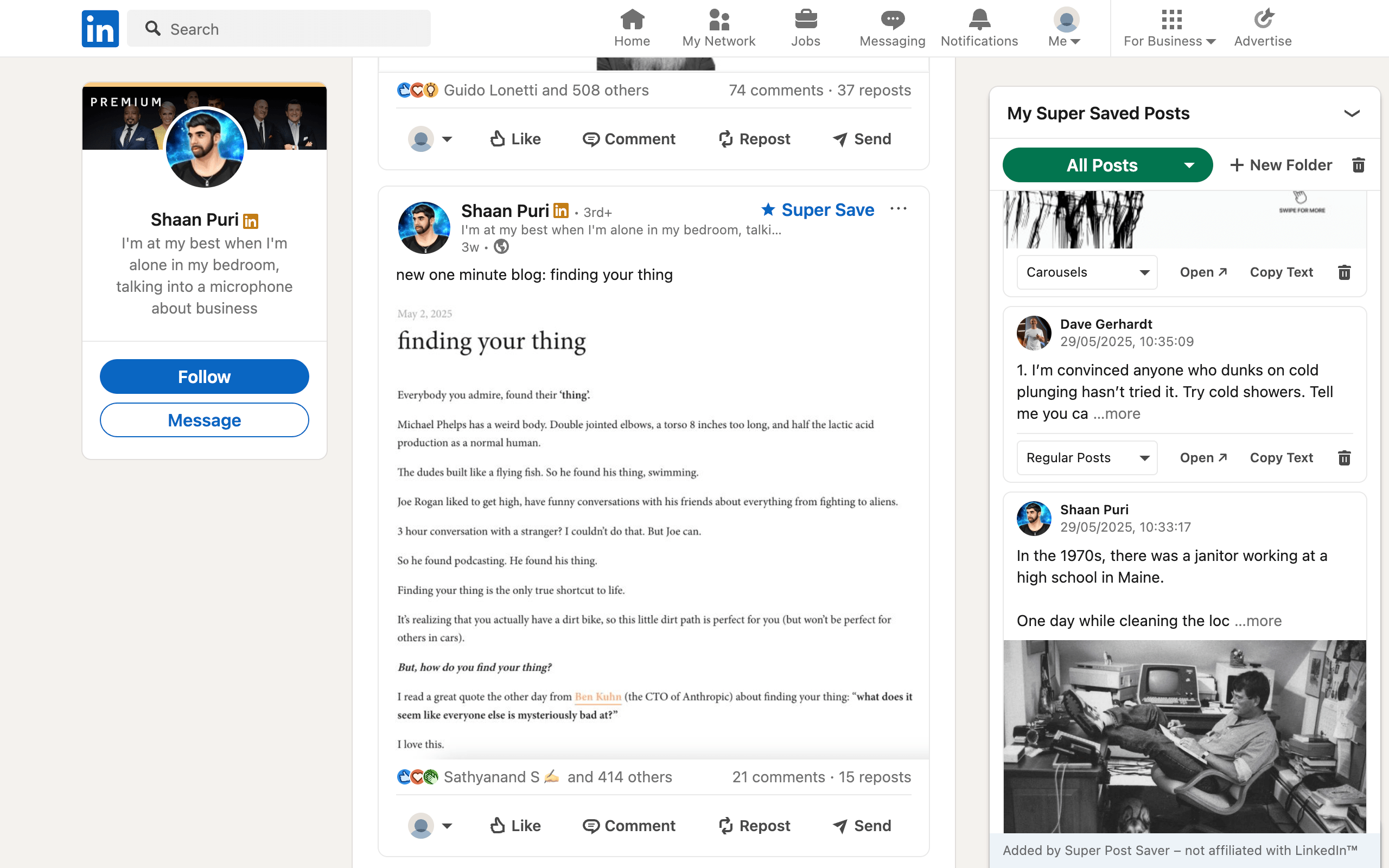
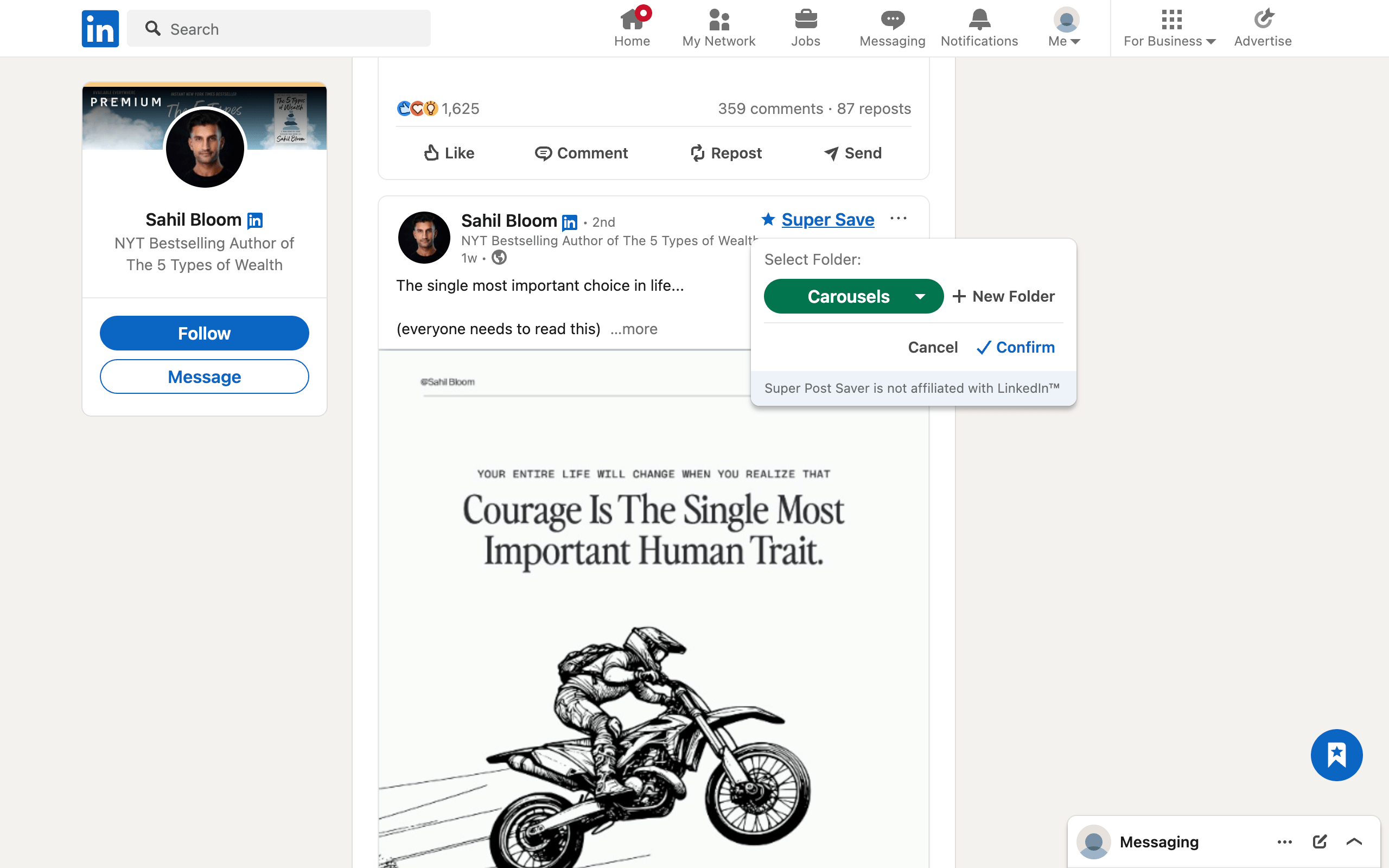
Quick answerBefore installing, check which sites the extension can access, whether saved content stays local or reaches a server, whether it automates account actions, how you can export or delete data, and whether the requested permissions match the stated features.
A post saver needs access to the page where the post appears. That creates a legitimate privacy question: what can the extension read, what does it store, and where does the stored information go? The Chrome permission dialog is a starting point, but a good review also considers product architecture and data controls.
Ask these six questions
- Which websites can it access? A LinkedIn-only tool should not normally need access to every unrelated site.
- What information does it capture? Look for a clear list such as author, visible post text, media preview, URL, folder, and save date.
- Where is that information stored? Local browser storage and a vendor-operated cloud have different tradeoffs.
- Does it transmit analytics or saved content? Read the privacy disclosure and inspect whether an account is required.
- Does it automate LinkedIn actions? Saving references is different from posting, liking, messaging, scraping at scale, or sending connection requests.
- Can you export and delete the collection? Control requires an exit path.
What common Chrome permissions mean
Google explains that a permission warning does not automatically mean an extension is dangerous. It tells you what the extension is capable of doing if misused or compromised. The important step is matching capability to purpose.
- Site access: allows the extension to read or change matching pages. A post saver needs this on LinkedIn to identify posts and place controls.
- Storage: lets the extension keep settings and saved items.
- Active tab: provides temporary access to the tab in response to user interaction.
- Clipboard write: supports an explicit action such as Copy Text.
- Scripting: can insert or refresh extension behavior on a matching page.
- Web navigation: can observe route changes. This is relevant because LinkedIn often changes views without a traditional full page load.
A broad permission may still support a real feature, but the developer should be able to explain it. Be cautious when a simple tool requests unrelated capabilities or access to all sites without a clear reason.
Local storage and cloud storage solve different problems
Local storage keeps the collection inside the browser profile. It reduces disclosure to another service and removes the need for a separate account. The tradeoff is that browser cleanup, profile loss, extension removal, or device failure can remove the collection unless you export it.
Cloud storage can provide sync, collaboration, mobile web access, and server-side search. The tradeoff is that the vendor receives and operates a copy of the collection, so its privacy policy, security, retention, and account deletion process matter more.
Neither model is universally safer. Choose the model whose benefits you need and whose responsibilities you understand.
How Super Post Saver handles the collection
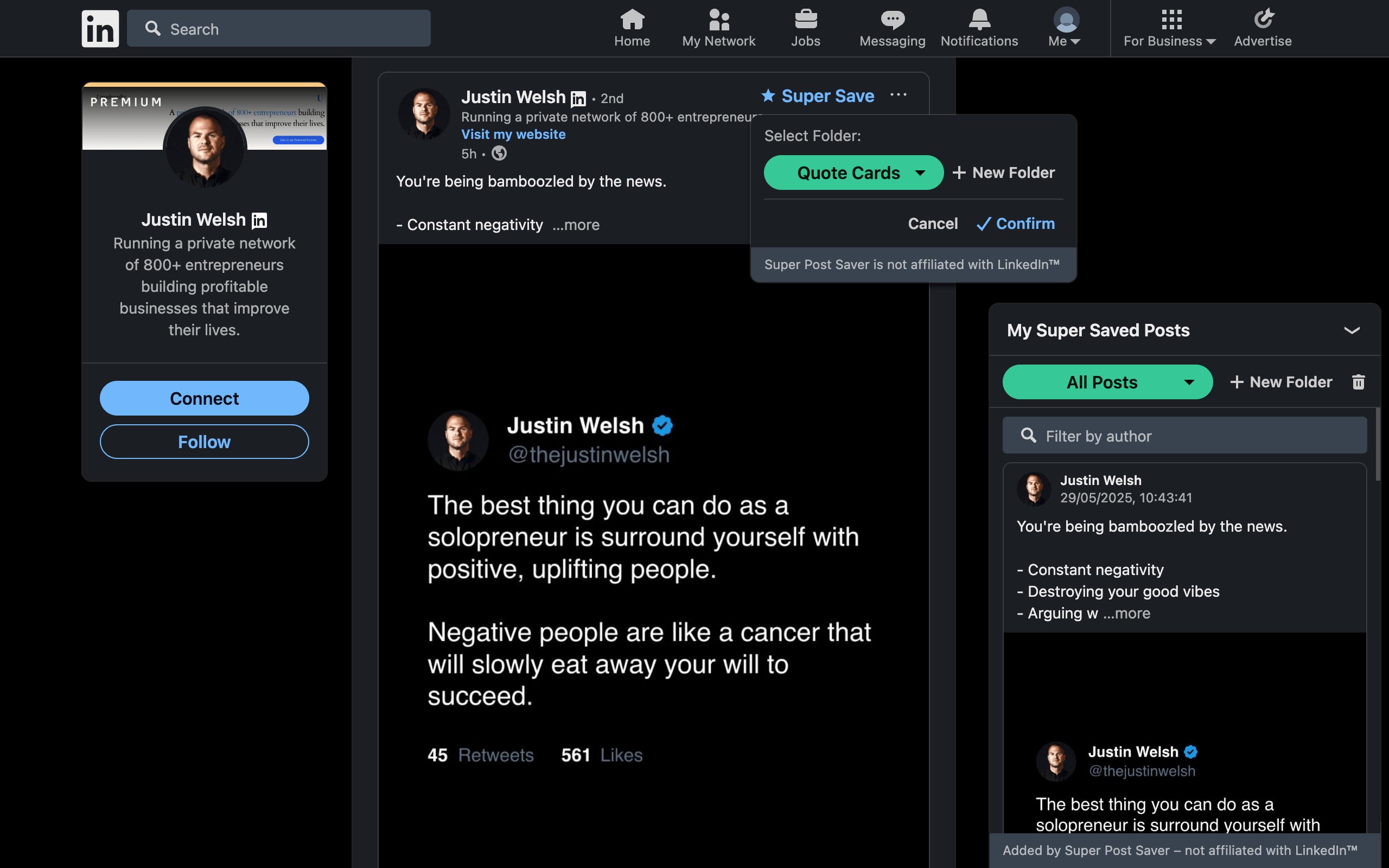
The current Super Post Saver extension is designed around Chrome local extension storage:
- no Super Post Saver account or password;
- no vendor cloud sync for the saved collection;
- no analytics code in the extension;
- site access scoped to LinkedIn and LinkedIn media domains;
- explicit Copy Text, export backup, and restore backup actions;
- no automated posts, likes, comments, connections, or messages.
The extension stores captured post text, author information, post references, folder assignments, save times, and available previews locally. It uses LinkedIn page access because those details and controls exist on the LinkedIn page.
Local does not mean indestructibleExport a JSON backup before clearing Chrome data, deleting a browser profile, removing the extension, or changing computers. Store that file somewhere you already back up.
A two-minute pre-install checklist
- Open the official Chrome Web Store listing rather than a copied download.
- Read the Data privacy section and the developer's privacy policy.
- Compare requested site access with the extension's purpose.
- Check the last update date and recent reviews for maintenance signals.
- Install, save two test posts, and inspect the export control before building a large collection.
- Remove the extension if its behavior differs from its disclosure.
Privacy is easier to evaluate when the product is specific about its boundaries. For the broader product checklist, read how to choose a LinkedIn post saver Chrome extension.