Quick answerOrganize saved LinkedIn posts around one primary question: what will you use the post for? Start with four to six folders, save new posts deliberately, and review the unsorted folder once a week.
The easiest folder system to build is also the easiest one to abandon: dozens of precise categories created before you know how you retrieve information. A useful system begins with behavior. When you return to a post, are you looking for its topic, its format, the person who wrote it, or the project it supports?
Choose one primary organizing axis
Most saved-post libraries use one of four approaches:
- By format: hooks, text posts, carousels, quote cards, polls, and video.
- By topic: positioning, SEO, leadership, sales, design, or hiring.
- By project: client launch, newsletter, course research, or next month's campaign.
- By next action: read, test, reference, share, or turn into a draft.
Pick the one that matches your most common retrieval question. A content designer may ask, "Where was that carousel cover?" and organize by format. A consultant may ask, "What did I save for the pricing project?" and organize by project.
Do not mix every axis at the top level. A folder named SEO sits beside a topic, while Carousels is a format and To Try is an action. That can work at small scale, but it becomes ambiguous quickly. Choose one primary axis and let search handle the rest.
A folder system that works for most people
- Inbox or Regular Posts: the temporary home for saves you have not classified.
- Examples: posts worth studying for execution, such as hooks or carousels.
- Research: frameworks, data, explanations, and references.
- To Apply: ideas connected to a real next action.
- Evergreen: durable posts you expect to revisit more than once.
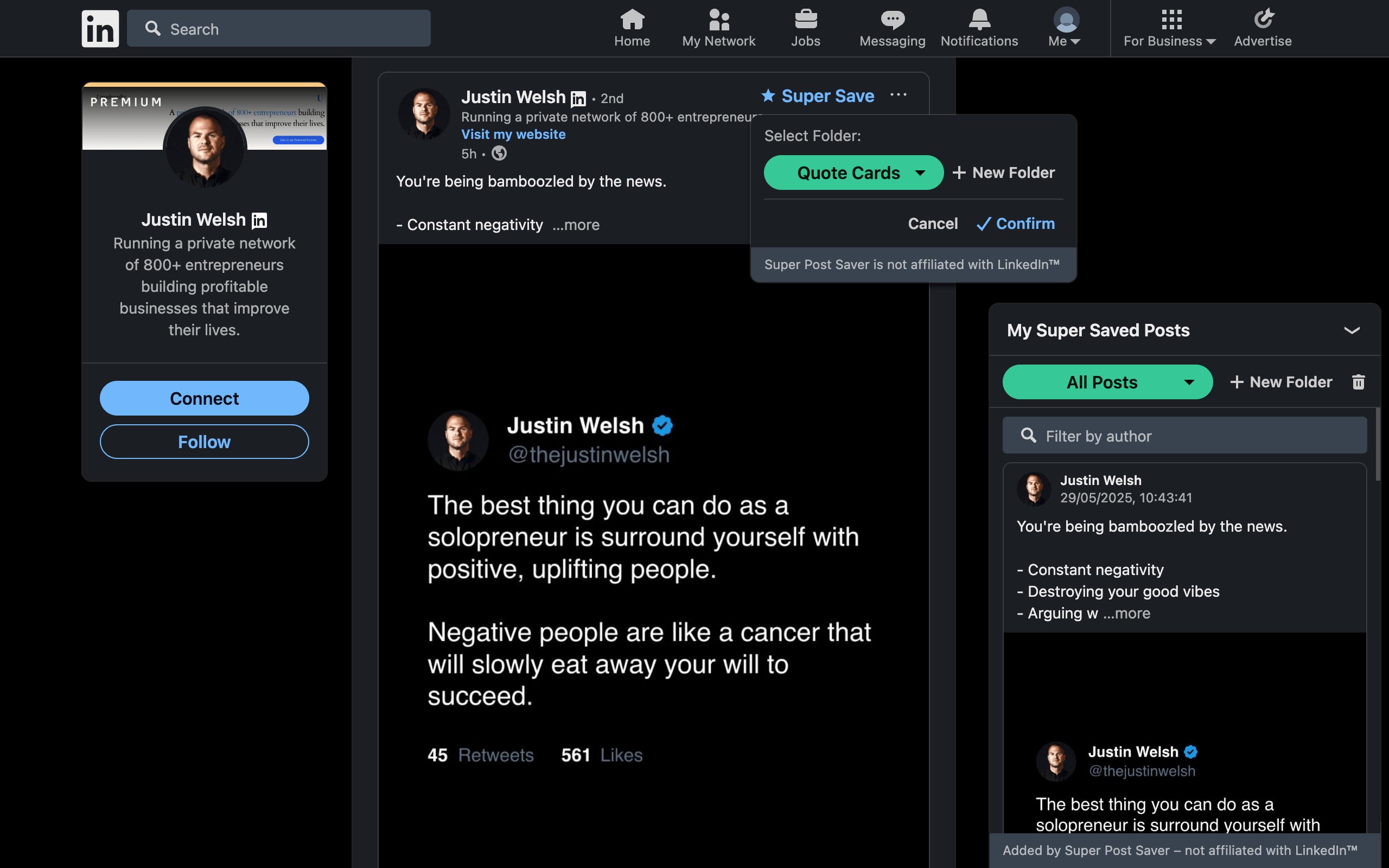
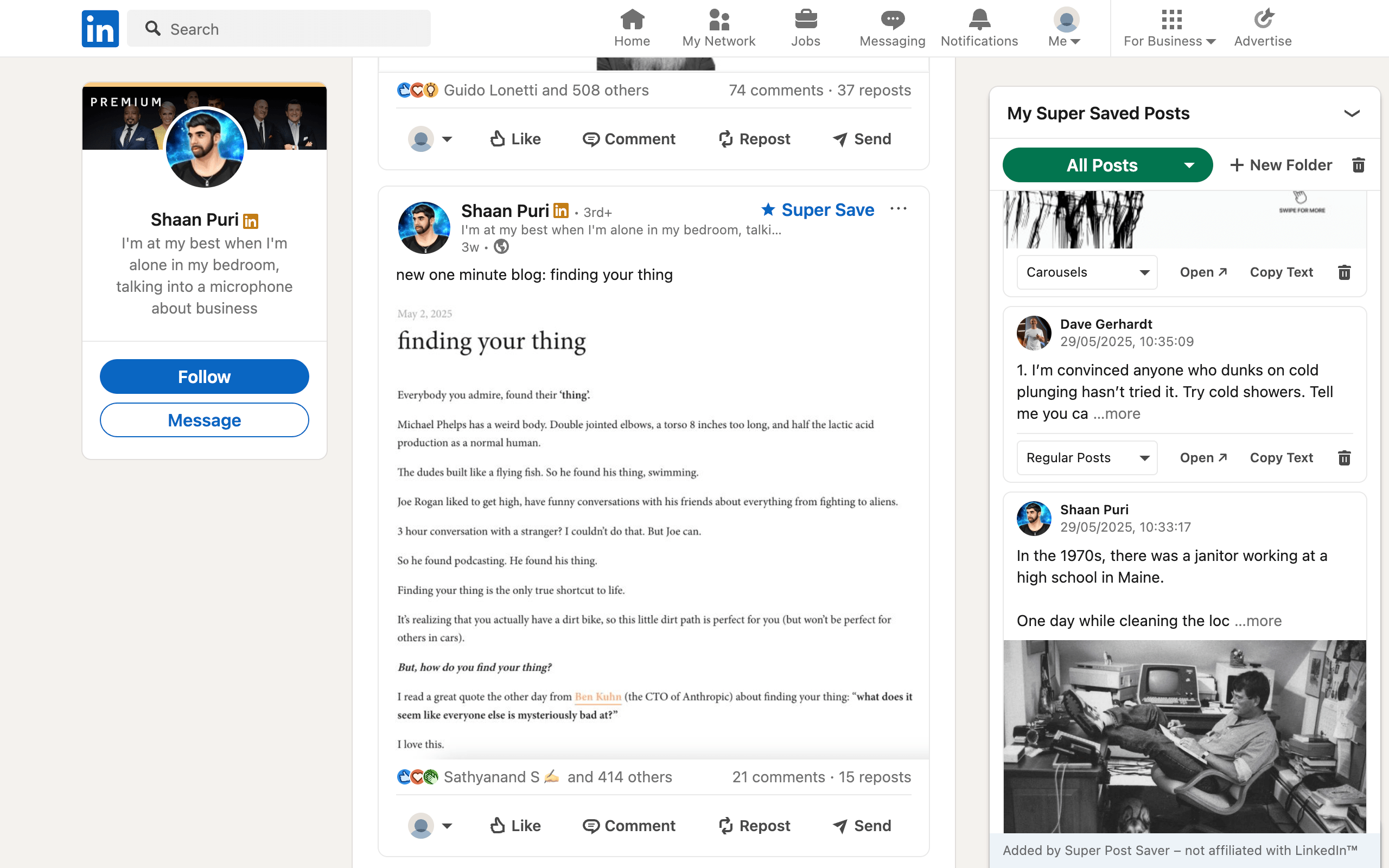
Super Post Saver includes useful format folders such as Regular Posts, Carousels, Quote Cards, and Infographics. Keep those if format is how you think. Otherwise, create custom folders around your work and use the built-ins only where they help.
Name folders for fast decisions
A good folder name makes the save decision obvious. Prefer "Hooks to study" over "Writing," "Client A research" over "Marketing," and "Test this month" over "Ideas." If a post could fit equally well in half your folders, the labels are too broad or your system has too many competing axes.
Folder examples by role
Content creator
- Hooks
- Story structures
- Carousels
- Proof and examples
- Calls to action
Social media manager
- Brand voice
- Campaign references
- Community prompts
- Reporting ideas
- Competitor patterns
Consultant or researcher
- Market evidence
- Client questions
- Frameworks
- Case studies
- To cite or verify
Folders do not need to preserve every dimension. If you save a carousel by a specific author about SEO, put it in the folder connected to the intended use. Later, search the author's name or a distinctive phrase to narrow the results.
What to do with an existing pile of native saves
Do not begin with a heroic plan to recategorize everything. Super Post Saver does not import the native LinkedIn Saved Items list, and manually rebuilding a large archive often costs more than it returns.
- Use the new folder system for all valuable posts going forward.
- Open your old LinkedIn saves only when you need something specific.
- If an old post is still valuable, add it to the new collection then.
- Let the useful part of the old archive migrate naturally.
This is a progressive migration. It keeps the collection relevant because only posts that prove their value make the move.
Use a ten-minute weekly review
- Empty or reduce the inbox folder.
- Delete saves that no longer make sense.
- Move high-value posts to the right folder.
- Choose one post to apply, not merely reread.
- Export a backup after major changes.
A healthy library is not the one with the most posts. It is the one where search results feel trustworthy and every folder suggests a next move. Pair this setup with the search workflow or turn the collection into a LinkedIn swipe file.