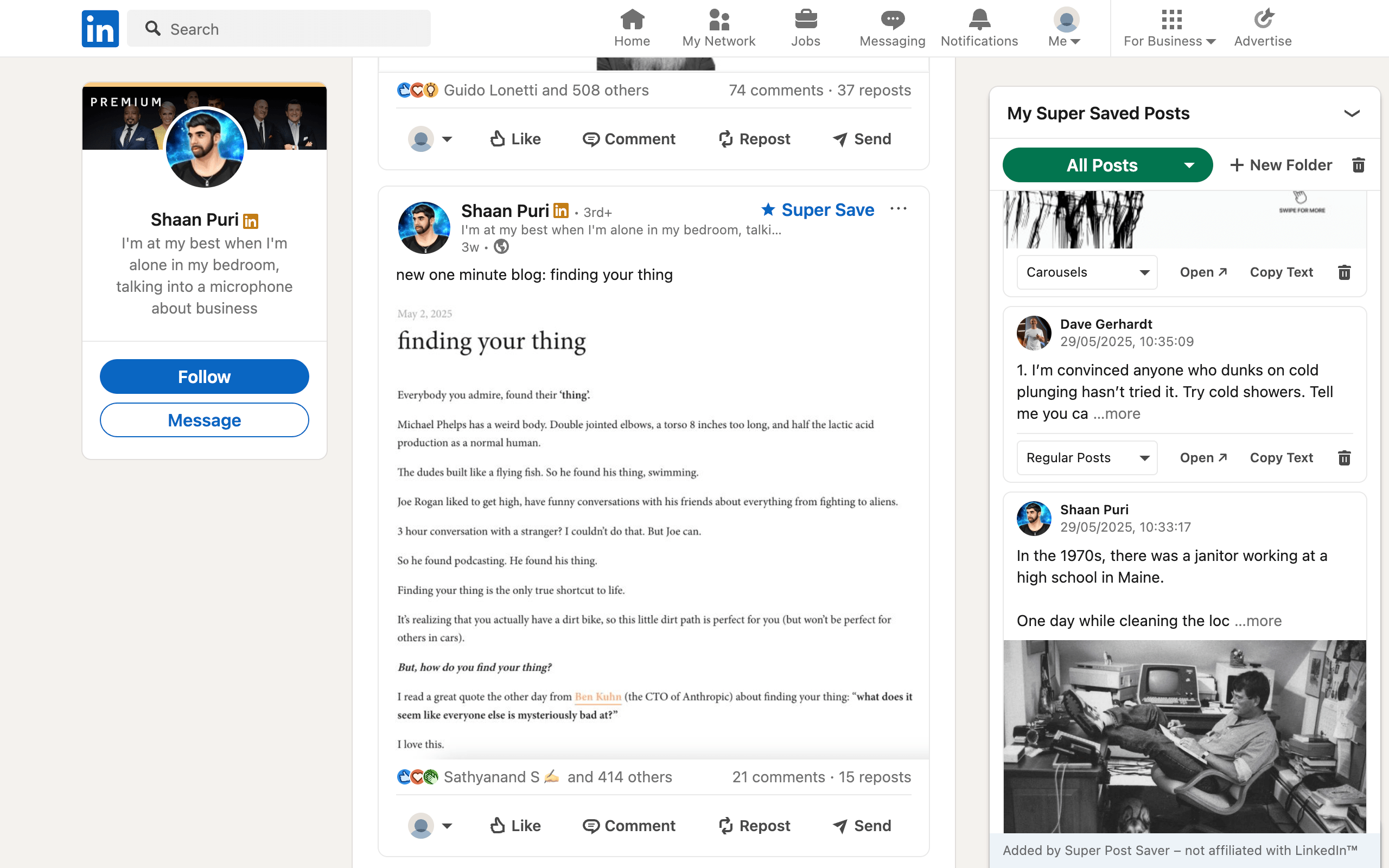
Quick answerIf you are looking across LinkedIn, enter a keyword in the main search bar, choose Posts, and apply the available author or date filters. If you are looking only inside your Super Saves, type an author name or remembered phrase in the extension search field.
There are two different search jobs that people often combine. One is finding any public post on LinkedIn. The other is finding one post inside a collection you already chose to save. LinkedIn's main search is built for the first. A saved-post index is built for the second.
Search for a post on LinkedIn
LinkedIn's documented member-post search flow is:
- Enter a keyword in the main LinkedIn search bar.
- Choose to see all results.
- Select the Posts tab.
- Use available filters such as date posted, content type, from member, from company, or author industry.
This is useful when you know the creator, topic, or approximate date. It is less direct when you are certain you saved a post but remember only a fragment such as "default alive" or "three customer interviews." Search results also depend on whether the post is still available and visible to your account.
Deleted posts cannot be rediscovered normallyLinkedIn notes that when a member deletes a post, it will no longer appear in search results or on that member's profile. A saved link is a reference, not a guarantee that the source remains online.
Search inside your own saved-post library
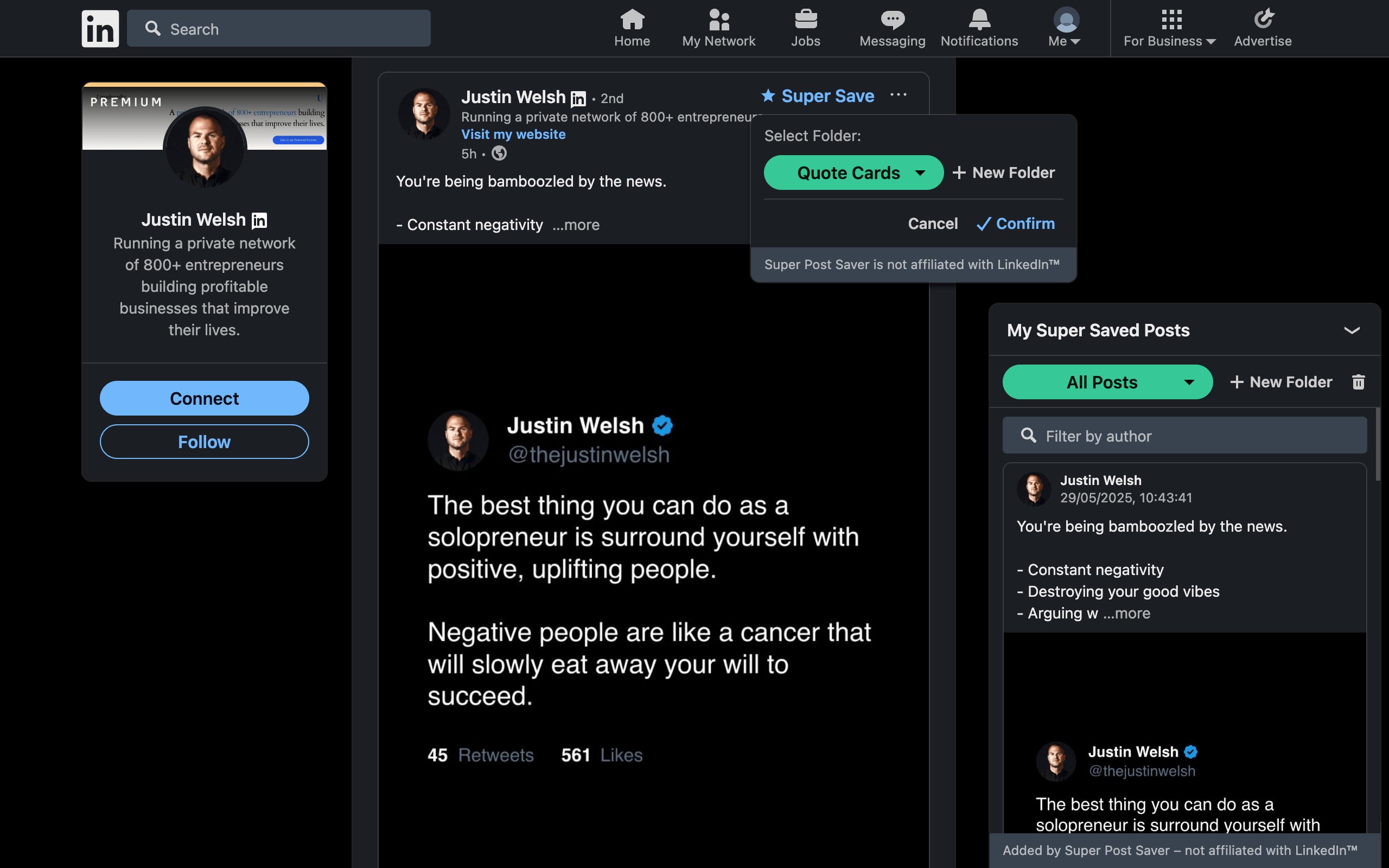
Super Post Saver searches only the posts you deliberately added through Super Save. Open the on-page panel or the Chrome extension popup and use the search field. It checks:
- the captured author name;
- the visible post text captured at save time;
- the post headline when one is available.
Matching words are highlighted in the author or post excerpt. This matters because a result list should explain itself. You can see the phrase that matched instead of opening every candidate.
A query strategy that works
Start with the most distinctive thing you remember
Do not begin with a broad topic such as marketing. Search the unusual noun, phrase fragment, product name, or person's surname that made the post memorable. Specific terms reduce noise.
Search the author when the idea is fuzzy
If you remember who wrote the post but not the exact subject, search the author and scan that smaller set. Folder selection can reduce it again.
Use one strong fragment before a long sentence
Captured text may differ slightly from what you remember, especially if LinkedIn collapsed part of the post. Try two or three distinctive words separately before pasting an exact sentence.
Narrow with a folder
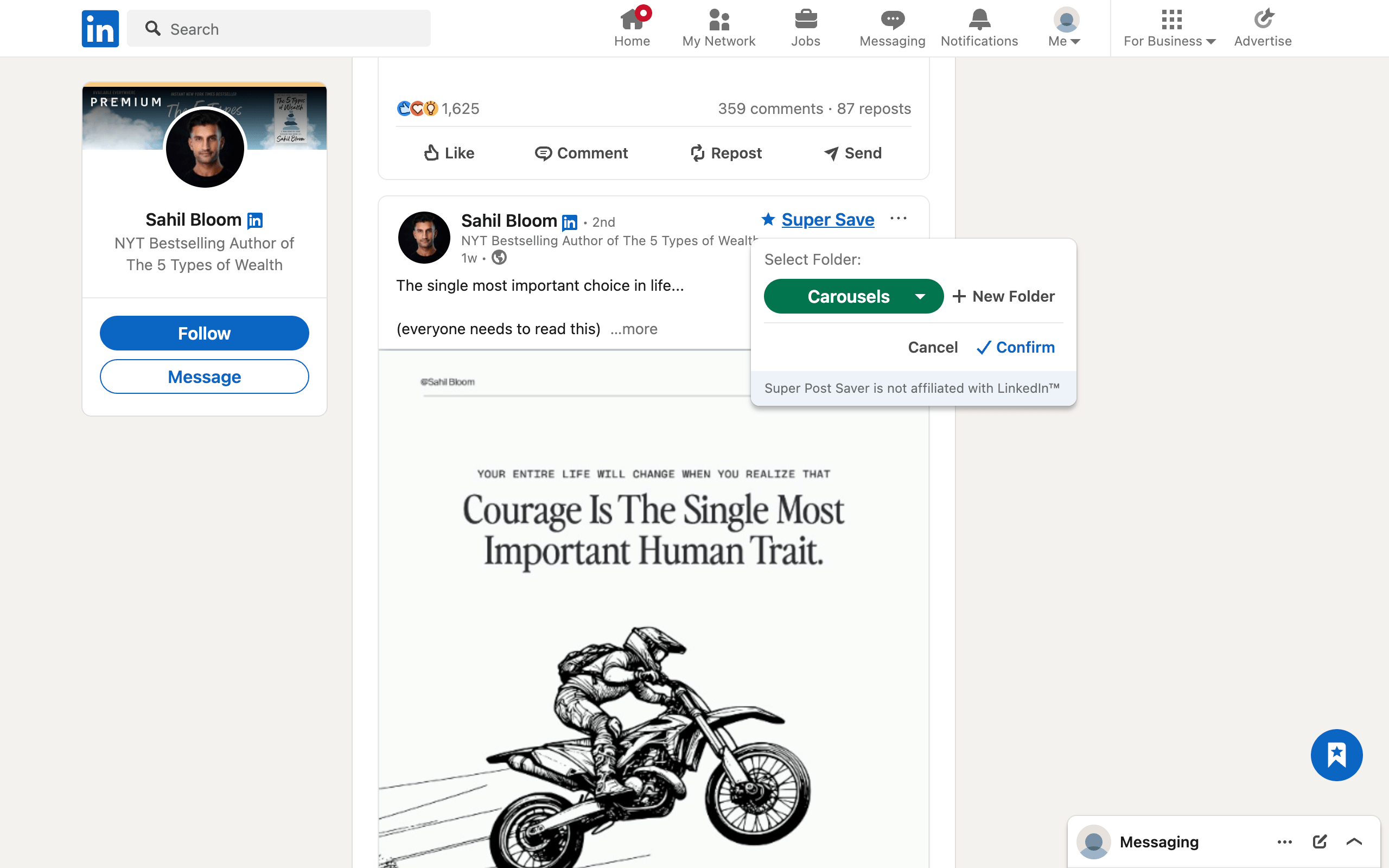
Search and folders answer different questions. The folder identifies the intended use; the query identifies the content. Select Carousels, Research, or a project folder first when the full collection is large.
What to check when search returns no results
- Confirm the post was Super Saved. Native LinkedIn saves are not imported into the extension.
- Switch to All Posts. You may be searching inside the wrong custom folder.
- Shorten the query. Search exact words likely to have appeared in the captured text.
- Try the author. Names are often more stable than remembered wording.
- Check the text preview. A post can contain media with little visible text, which gives keyword search less material.
Design the collection for retrieval
Search quality begins at save time. Keep a post because it supports a clear future use, place it in a folder connected to that use, and avoid saving several near-identical examples. Better inputs produce better results.
For a cleaner taxonomy, follow the folder organization guide. If your collection is mainly creative reference, the LinkedIn swipe-file workflow adds a useful review habit.