Quick answerFor your own post, open your profile, find Activity, choose Show all activity, and select Posts. For another member, use the same route on their profile. If you only remember the topic, search LinkedIn, choose Posts, and use the most distinctive words you can recall.
Old LinkedIn posts are easiest to find when you first identify what you know. The author's name points to profile activity. A memorable phrase points to Posts search. A deliberate save points to Saved Items or your separate post-saver library. Trying all routes at once usually creates more noise.
Find your own old LinkedIn posts
- Open your LinkedIn profile.
- Scroll to the Activity section.
- Select Show all activity.
- Choose the Posts tab or filter.
- Scroll through the results and use clues such as the media, opening line, and date.
LinkedIn activity can also include comments, reactions, articles, images, or other formats, so selecting Posts matters. If you remember a phrase from your own post, a LinkedIn Posts search containing the phrase and your name may be faster than scrolling.
Find old posts from another person
- Open the member's profile.
- Locate Activity and choose Show all activity.
- Select Posts.
- Scan the visible history for the topic or format you remember.
This method is strongest when you know the author with confidence. It can fail when the person has changed visibility, deleted the post, restricted profile access, or published through a company page instead of a personal profile.
Search by the words you remember
Type a distinctive keyword or phrase into LinkedIn's search bar, press Enter, and select Posts. Add the author's name, company, product, or topic only when it removes irrelevant results.
Good search clues include:
- an unusual phrase from the opening;
- a specific statistic or product name;
- the author's surname plus one topic word;
- a conference, city, company, or client mentioned in the post;
- the document or carousel title.
Weak clues include broad words such as leadership, AI, hiring, or marketing on their own. The LinkedIn keyword search guide includes more query patterns and filter advice.
Check the place where you saved it
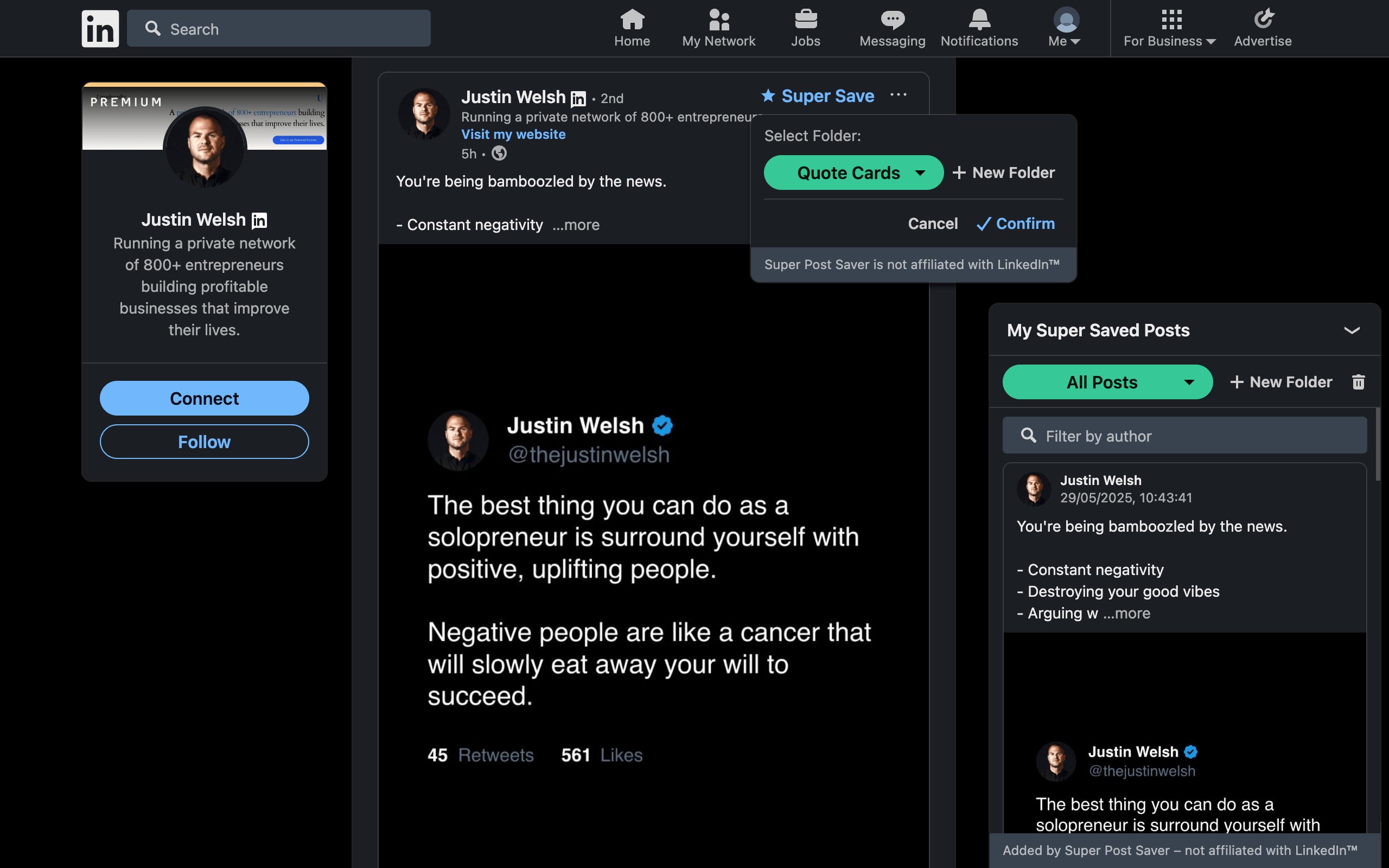
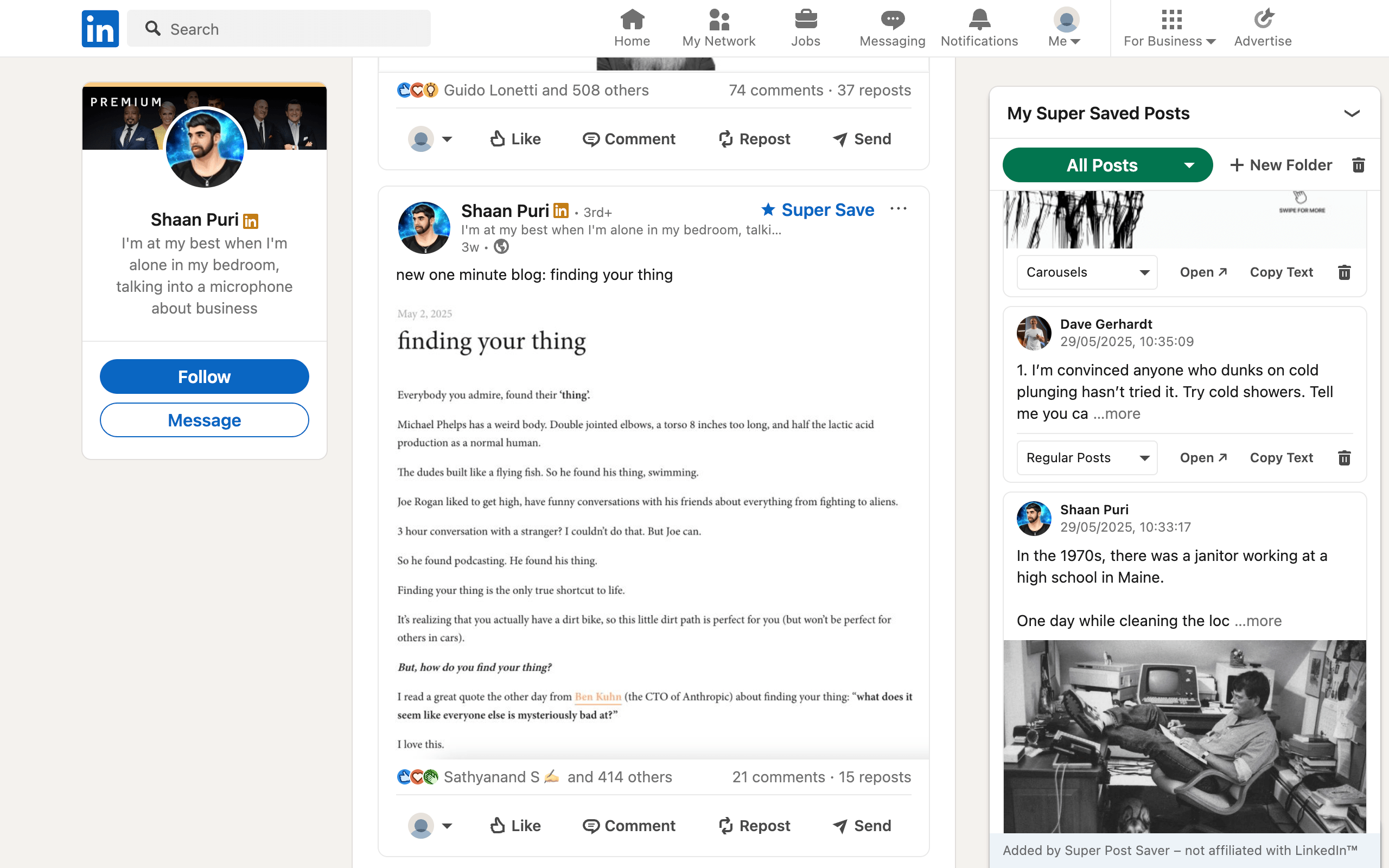
If you selected LinkedIn's native Save action, open Saved Items from Home. If you used Super Save, open the extension's All Posts view and search the author's name or captured post text. These systems do not share a database, so checking the correct one matters.
A browser bookmark is another possibility. Search Chrome bookmarks for the author's name, page title, or linkedin.com/posts. Generic bookmarks can still be difficult to identify because the saved title may not include the post body.
Use Google as a fallback, not a complete archive
Public LinkedIn post pages sometimes appear in search engines. Try a targeted query such as:
site:linkedin.com/posts "distinctive phrase" "author name"
Remove one quoted part if nothing appears. Search-engine coverage is incomplete and can lag behind changes, so a missing Google result proves very little. Posts limited by audience or sign-in access may never be indexed.
Why an old post may be impossible to find
- The author deleted it.
- The author changed who can see it.
- The account or company page disappeared.
- You remember a repost or comment, not the original post.
- The content was an article, newsletter, video, or document shown under another activity filter.
- The words were in an image, so text search cannot match them.
When you recover an important post, save it with enough context to avoid repeating the search. A folder and indexed text are more useful than another anonymous bookmark. For a collection that has already grown, follow the saved-post organization guide.