Quick answerConfirm you are in the same LinkedIn account, open Saved Items from LinkedIn Home, remove any narrow content filter, wait for the dynamic list to load, and refresh once. If all saves are blank, test an incognito window or another browser before clearing site data.
A missing saved post does not always mean LinkedIn lost it. The post may be in another account, in another content tab, saved through a different tool, hidden by a temporary loading problem, or no longer available from its author. Work from the least disruptive checks to the more involved browser fixes.
The first five things to check
- Verify the LinkedIn account. Native saves belong to the account that made them. This is easy to miss when you use personal and work profiles in different browser windows.
- Use the normal route. From LinkedIn Home, open Saved Items or My Items, then choose saved posts and articles. An old direct URL may be less reliable after interface changes.
- Check the content type. A post, article, job, course, and event may appear in different saved areas or tabs.
- Remove filters. Return to the broadest saved-content view before deciding an item disappeared.
- Wait, then refresh once. LinkedIn loads many views dynamically. Give the list a moment before a standard reload.
Browser fixes for a blank or stuck Saved Items page
LinkedIn's troubleshooting guidance recommends common browser checks when a feature does not load correctly. Try them in this order:
- Open LinkedIn in an incognito or private window and sign in.
- Try a current version of another supported browser.
- Temporarily disable recently added browser extensions, then reload.
- Sign out of LinkedIn and sign in again.
- Clear LinkedIn site data or browser cache only after the simpler tests.
An incognito test is useful because it separates an account-side issue from local browser state. If Saved Items works there, cached data or an extension conflict is more likely. If it fails in multiple browsers, check LinkedIn Help or service status before repeatedly changing your setup.
When one specific saved post is gone
If the rest of the list loads, the missing item may no longer be available. Common explanations include:
- the author deleted the post;
- the author's account or company page was removed;
- the audience or visibility changed;
- you no longer have access to the author or community;
- LinkedIn did not index or display the item in the current view.
Try searching a distinctive phrase and the author's name in LinkedIn Posts search. Then open the author's Activity section. If an old direct link also fails, the original is likely unavailable to your account. No bookmark tool can restore content that the publisher removed from LinkedIn.
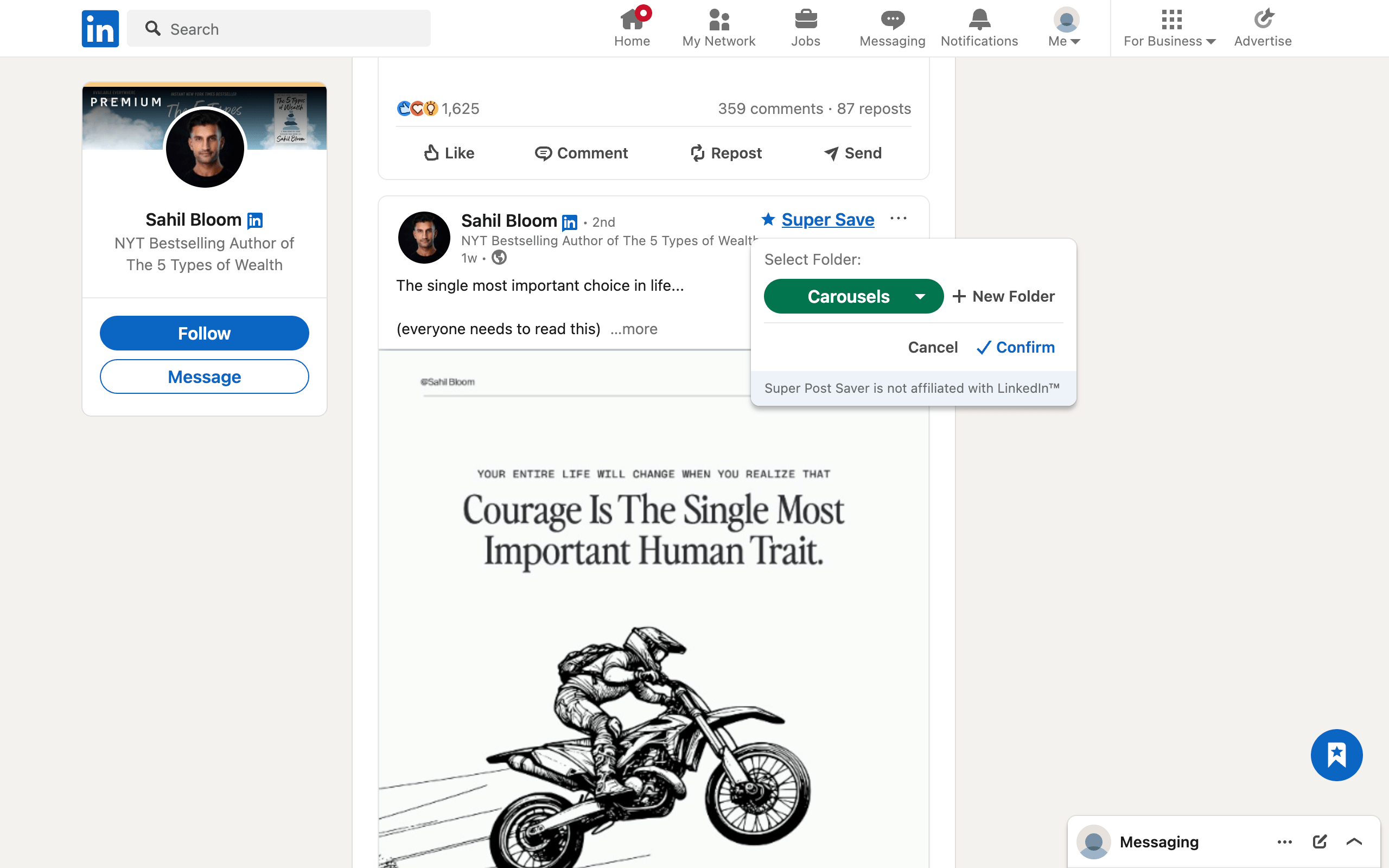
Make sure you used LinkedIn Save, not Super Save
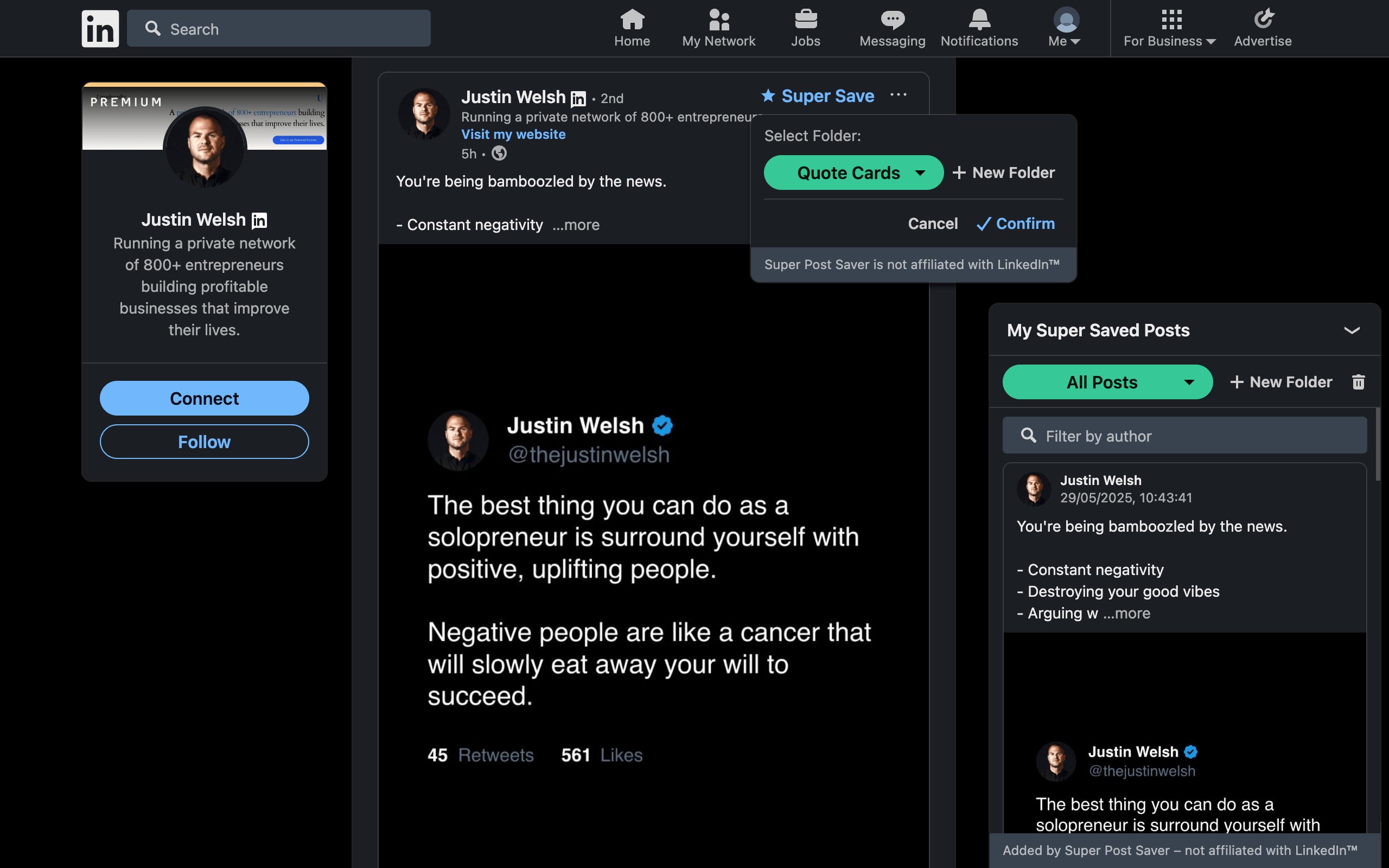
LinkedIn Save and Super Post Saver create two independent collections:
- LinkedIn Save puts the item in the LinkedIn account's Saved Items area.
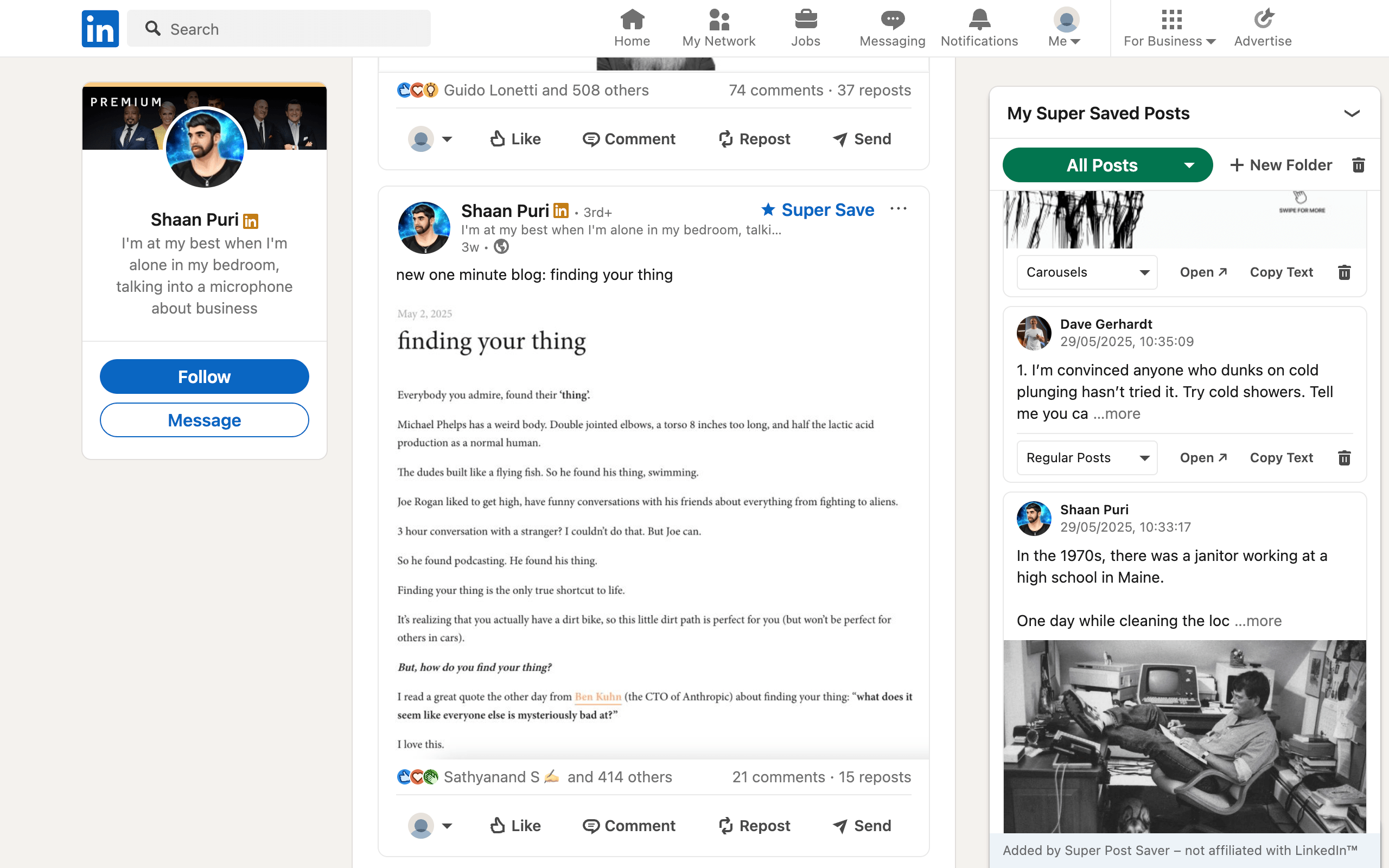
- Super Save puts captured context in the Chrome extension's local library.
If you remember choosing a folder, you probably used Super Save. Open the extension panel and search All Posts by author or a phrase from the body. If you used LinkedIn's More menu and selected Save, use Saved Items instead.
Reduce the chance of losing a useful reference
- Use native Save for casual mobile reading and Super Save for durable desktop research.
- Place high-value references in a meaningful folder when you capture them.
- Turn irreplaceable evidence into your own note with attribution and a link.
- Export the Super Post Saver library after major organizing sessions.
- Do not treat any social post as permanent source storage.
For the exact desktop and mobile navigation, read how to find saved posts on LinkedIn. For local backup and permissions decisions, use the post saver privacy checklist.