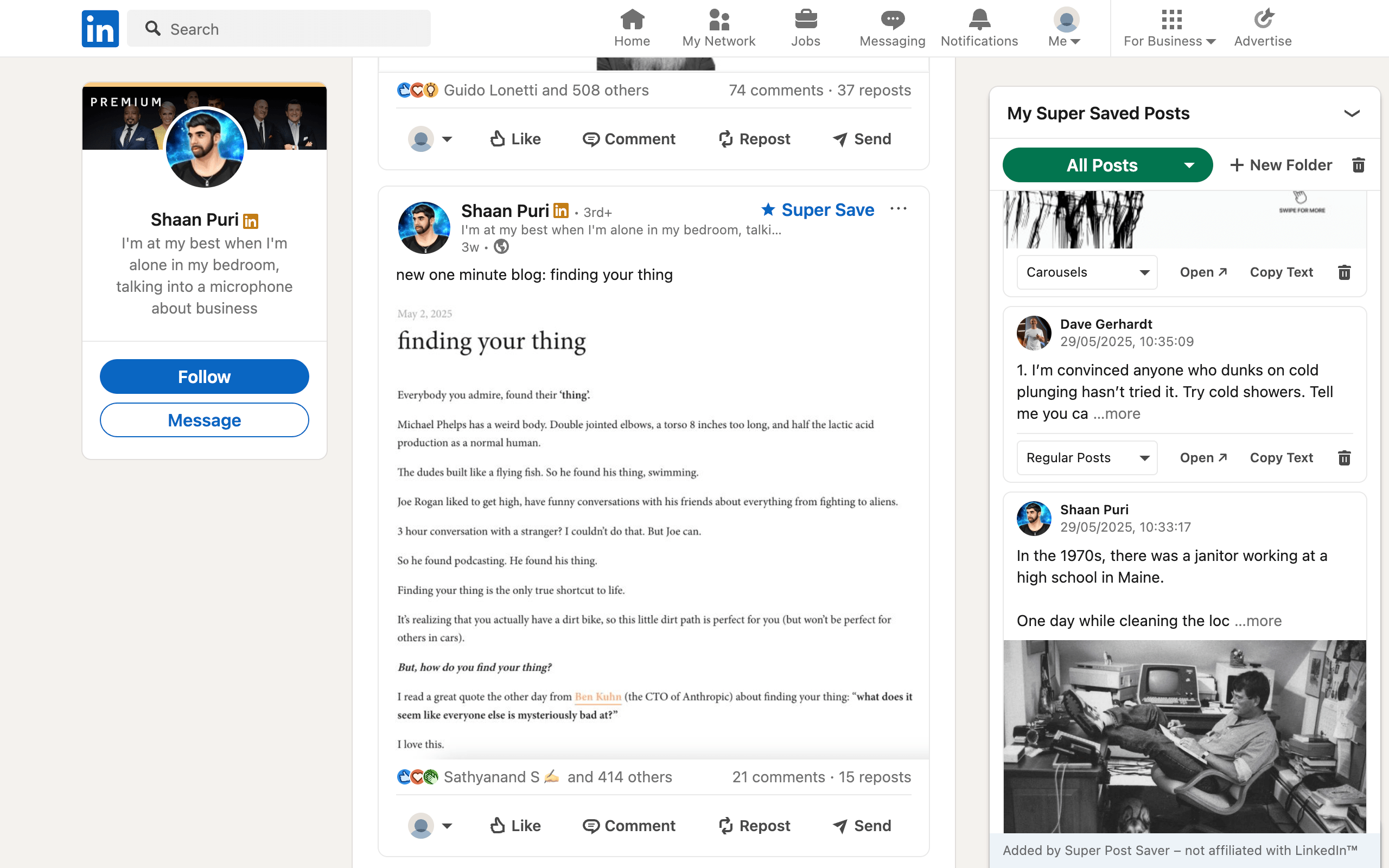
Quick answerOn a LinkedIn post, open the More menu in the upper-right corner and choose Save. To put a post directly into a searchable folder on desktop Chrome, choose Super Save after installing Super Post Saver.
There are two useful ways to save a LinkedIn post. LinkedIn's own Save action is available on desktop and mobile and is best for a straightforward reading list. A dedicated post saver is better when you need folders, post-text search, or a repeatable research workflow. They can coexist, but they create separate collections.
Save a LinkedIn post on desktop
- Find the post in your feed, search results, or a member's activity page.
- Select the More icon in the post's upper-right corner.
- Choose Save.
- Use the temporary View Saved Posts message if you want to confirm the save immediately.
LinkedIn notes that not every feed item can be saved. Recommendations, profile-change updates, and some other system-generated updates may not provide the same option.
Save a LinkedIn post on mobile
- Open the post in the LinkedIn app.
- Tap the More icon in the upper-right corner.
- Tap Save.
- Use the confirmation banner to view saved posts, or return later through your profile menu.
To remove a native save, open Saved posts, use the post's More menu, and choose Unsave. This does not delete the original post.
Save a LinkedIn post directly into a folder
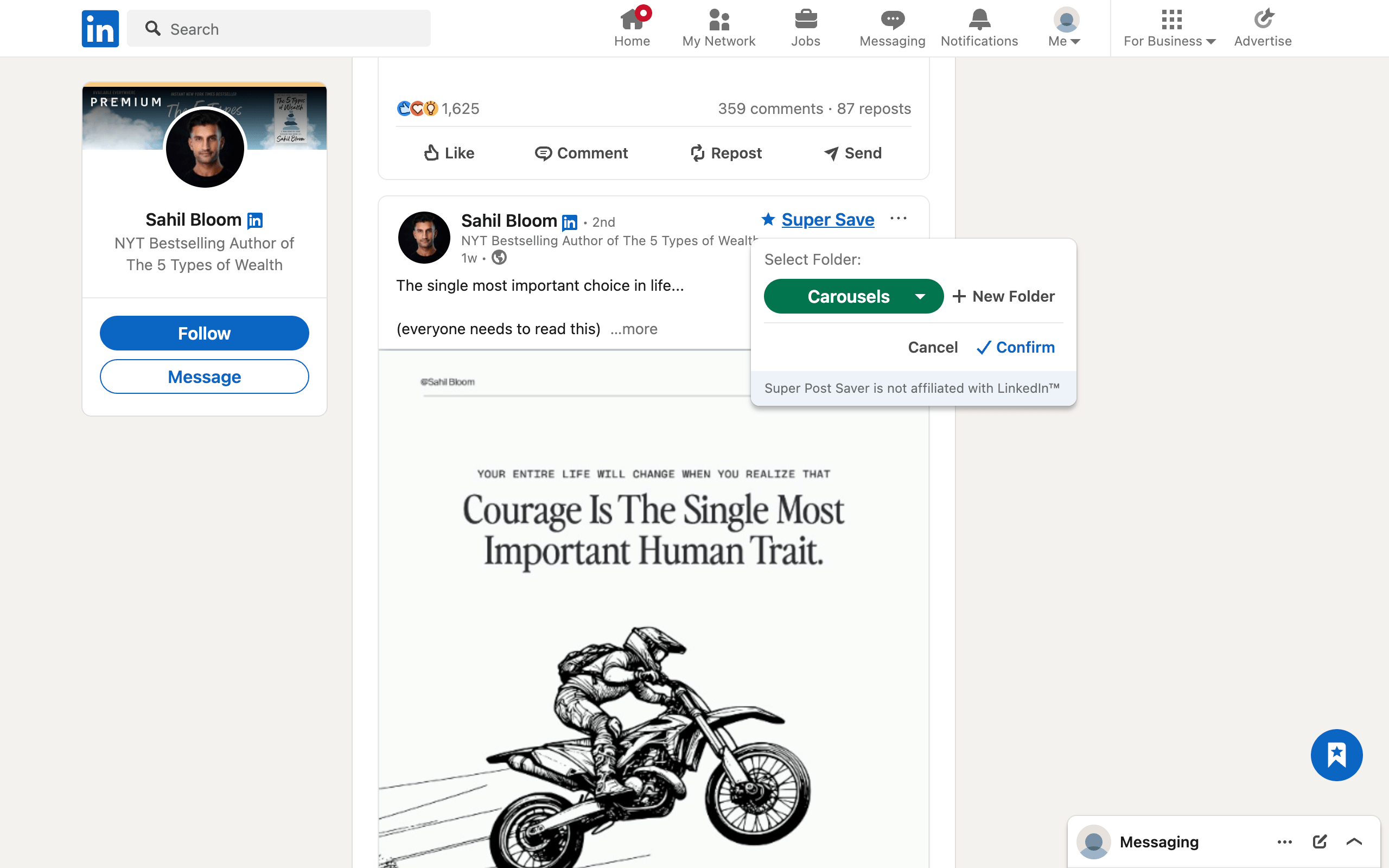
On desktop Chrome, Super Post Saver adds a Super Save control to supported post views. The exact position adapts to LinkedIn's current post controls.
- Install Super Post Saver from the Chrome Web Store.
- Open LinkedIn and find a post you want to keep.
- Select Super Save.
- Choose Regular Posts, Carousels, Quote Cards, Infographics, or a custom folder.
- Confirm the save.
The extension captures the post context available in the page, including the author and visible post text. It also attempts to keep a direct post reference so the Open action returns to the original post rather than the general feed.
You can review the collection in the panel on LinkedIn or from the extension's Chrome toolbar popup. Search covers the author's name and captured post text, and matching words are highlighted.
Native Save or Super Save?
| Need | LinkedIn Save | Super Save |
|---|---|---|
| Save from the mobile app | Yes | No, desktop Chrome only |
| Custom folders | Not part of LinkedIn's documented save flow | Yes |
| Search captured post text | Interface varies | Yes, within Super Saves |
| Local export and restore | No | Yes |
| Import old native saves | Not applicable | No |
Use native Save for casual reading across desktop and mobile. Use Super Save when the post belongs to a project, research collection, swipe file, or other system where retrieval matters.
Save with a purpose
A collection becomes cluttered when every interesting post receives the same treatment. Before saving, finish this sentence: I am keeping this because...
- It demonstrates a strong opening line.
- It explains evidence I will use in a project.
- Its carousel structure is worth analyzing.
- It contains a process I plan to test this week.
That reason should determine the folder. If no folder makes sense, the post may be interesting without being worth keeping. For a durable taxonomy, continue with how to organize LinkedIn saved posts.
Protect local savesExport a backup before clearing Chrome data, removing the extension, or changing browser profiles. Local storage gives you privacy, but you are responsible for the backup.