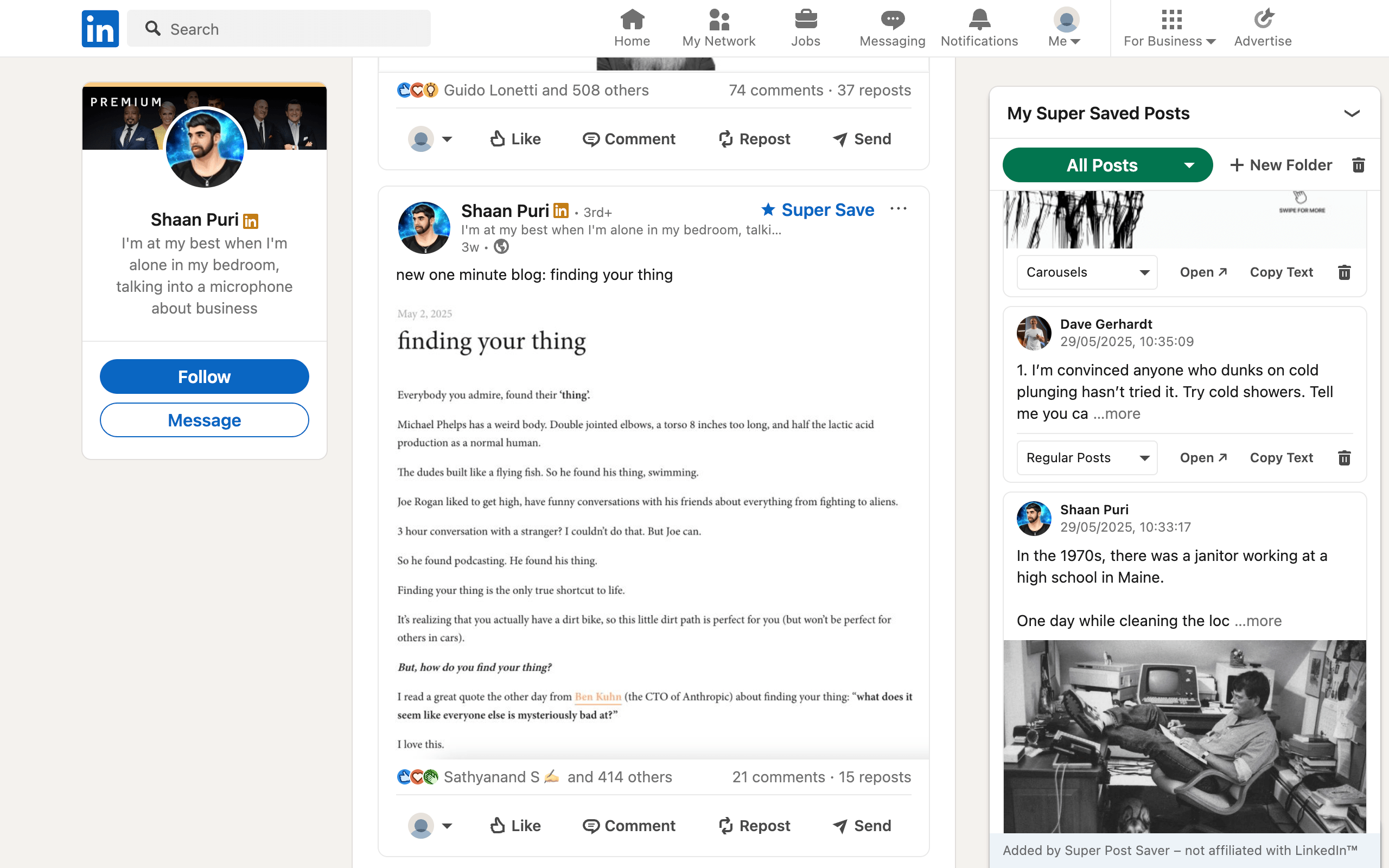
Quick answerEnter a distinctive keyword or phrase in LinkedIn's search bar, run the search, and choose the Posts tab. Narrow by date, author, or other available filters. If you are looking for something you previously Super Saved, search its captured author or post text in the extension library instead.
"Search LinkedIn posts" can mean three different jobs: discovering any public post about a topic, finding a post by a particular person, or recovering a post you saved earlier. Each job has a better route. Starting in the wrong place is why a simple search often feels unreliable.
1. Search public LinkedIn posts by keyword
- Type a keyword or short phrase in the LinkedIn search bar.
- Press Enter to open the results page.
- Select Posts from the result categories.
- Scan the first results, then apply filters if the query is broad.
LinkedIn's current search help says you can use keywords or natural-language queries and then choose a result category such as Posts. Start with the rarest phrase you remember. "B2B marketing" is broad; "founder-led pipeline review" is much more likely to recover a specific post.
2. Narrow the Posts results
The exact filters can vary by account and interface, but useful options may include recency, content type, author relationship, or a specific member. Apply only the filter that removes obvious noise. Too many filters can hide the post when your memory of its date or author is imperfect.
- Recent posts: useful for news, events, and topics that change quickly.
- From a member: useful when you know the creator.
- Exact phrase fragments: useful for a sentence or unusual term you remember.
- Company or product names: useful when the post discusses a recognizable entity.
Search results are not a complete archive of every LinkedIn post. Visibility, deletion, audience settings, indexing, and ranking can affect what appears.
3. Search posts from a person you know
When the author is known, their profile activity is usually a better starting point than a global query:
- Open the person's LinkedIn profile.
- Find the Activity section.
- Choose Show all activity.
- Select the Posts view, then scan or use browser Find for a visible phrase.
This route removes unrelated authors, but it still depends on what LinkedIn exposes in activity and what the person has kept visible. The guide to finding old LinkedIn posts covers your own activity and other members in more detail.
4. Search posts you already saved
LinkedIn's native Saved Items route helps you reopen saved content, but its official save flow does not describe a full text search across the body of your saved posts. If your list is long, you may still be scrolling.
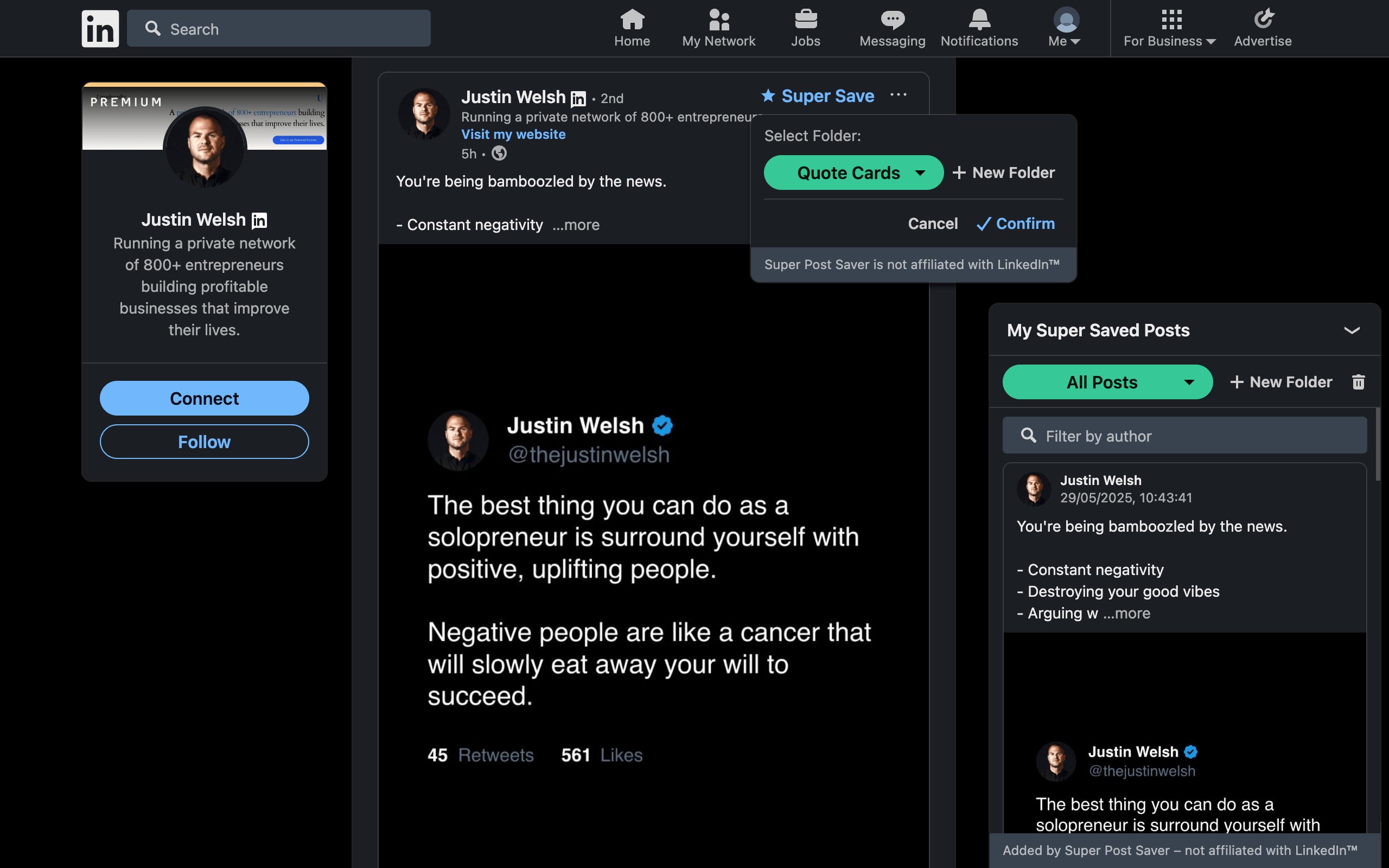
Super Post Saver creates a separate local collection for posts saved with its Super Save action. Search checks the captured author and visible post text. Matching words are highlighted, so each result shows why it appeared. Select All Posts to search across folders, or open a folder first to combine topic context with a keyword.
Keep the two systems straightA LinkedIn native save and a Super Save are separate actions. The extension does not automatically search or import your existing LinkedIn Saved Items list.
5. Use query patterns that recover more posts
Begin with one distinctive fragment
Try the unusual noun, product, quote fragment, or surname before a complete remembered sentence. Post text can change, and your memory may preserve the idea rather than the exact wording.
Combine topic and author
A topic plus a surname is often more precise than either alone. In a saved library, search the author first and scan excerpts if the topic words are common.
Try spelling and formatting variants
Hyphens, abbreviations, singular and plural forms, and product-name spelling can change results. Search the stable root word when the exact form is uncertain.
Use Google only as a fallback
A query such as site:linkedin.com/posts "distinctive phrase" can surface public indexed pages, but it is incomplete. Private, unindexed, deleted, and recently published posts may not appear.
The best long-term method is to separate discovery from retrieval: use LinkedIn search to find public material, then save the references worth keeping into a collection you can search directly.