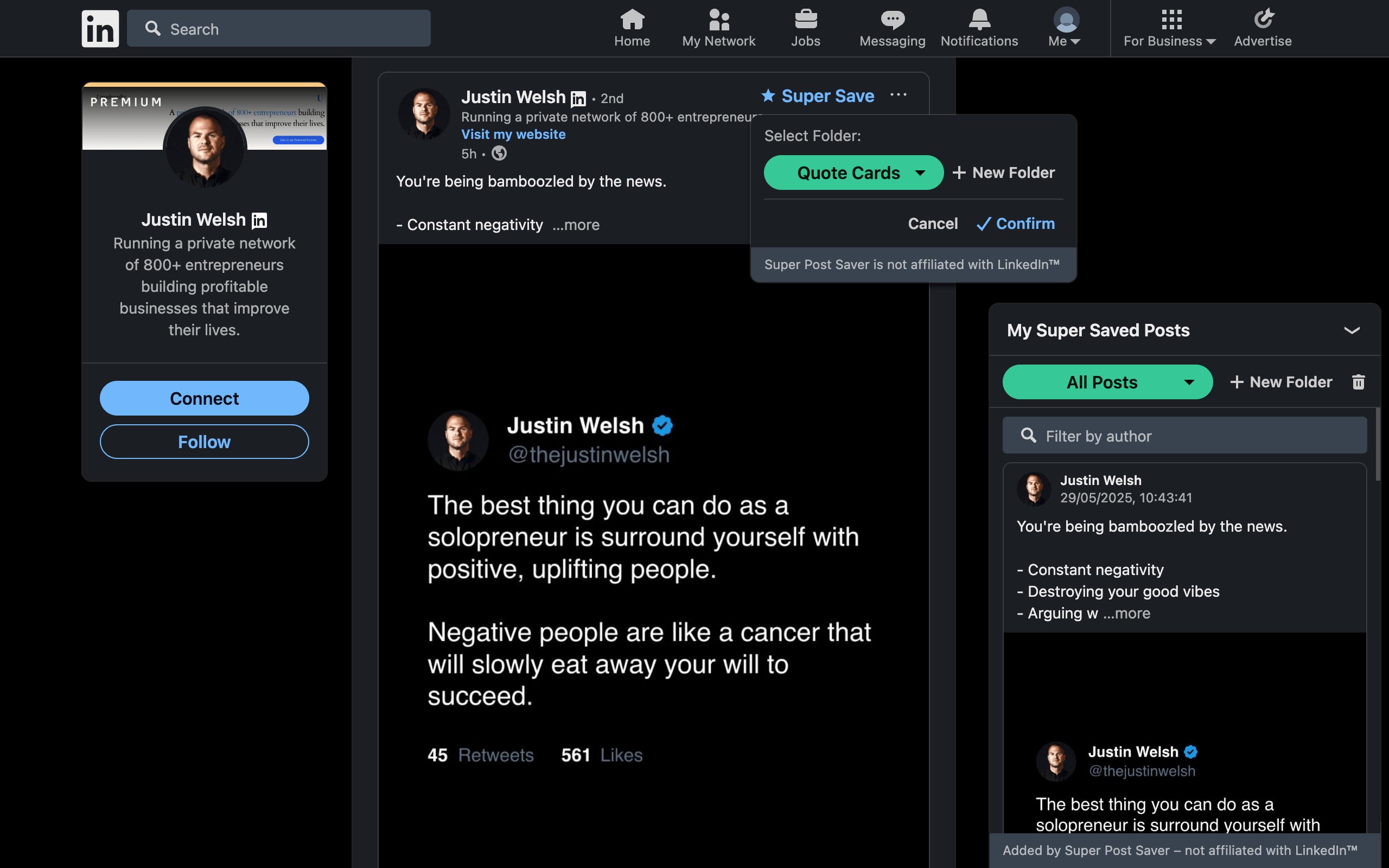
Quick answerUse the post's More menu and choose Save for LinkedIn's native list. On desktop Chrome, choose Super Save and place the post in Carousels or a custom folder so you can later search the author or post text.
People often call LinkedIn's multi-page document posts carousels because readers move through a sequence of pages. They are useful references for visual hierarchy, teaching sequences, reports, portfolios, and narrative pacing. They are also easy to lose because the memorable part may be visual rather than a phrase in the caption.
Save a carousel with LinkedIn's built-in option
- Open the More menu in the upper-right corner of the post.
- Choose Save.
- Find it later under Saved Items on desktop or Saved posts in the mobile account menu.
This saves the post to LinkedIn's own list. It is a good option when you browse on mobile or need only a simple reference.
Save a carousel into a dedicated folder
With Super Post Saver installed in desktop Chrome:
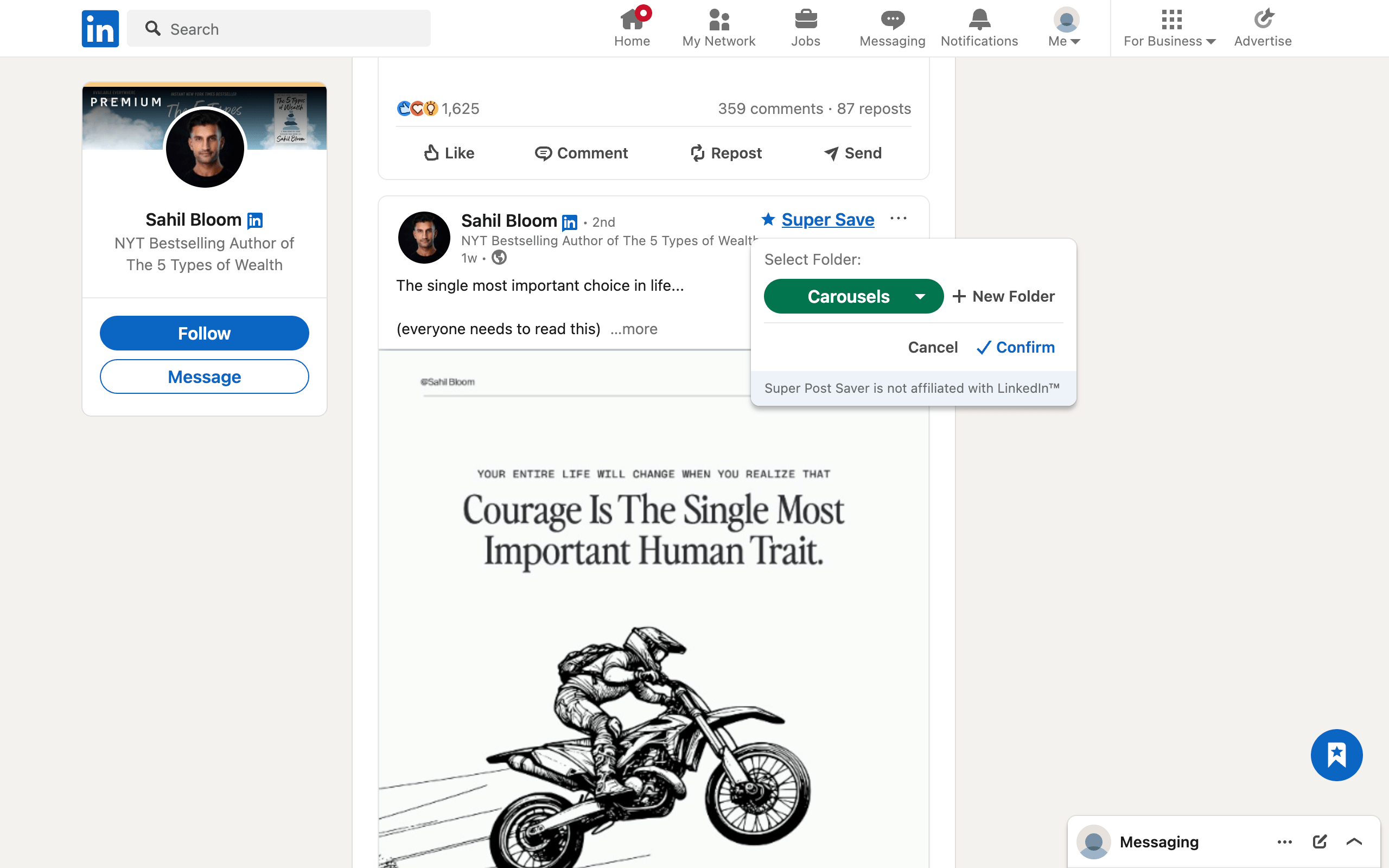
- Select Super Save on the supported post view.
- Choose the built-in Carousels folder or create a narrower folder such as Carousel covers, Reports, or Teaching sequences.
- Confirm the save.
- Later, search the creator's name or words from the post caption.
A direct post reference is especially important for visual formats. A normal browser bookmark can keep the URL, but it usually gives you little context beyond a page title. Super Post Saver keeps the captured author and visible text beside the reference.
Classify what the carousel teaches
A single Carousels folder can become too broad. If visual references are central to your work, organize by the design or communication problem:
- Covers: title hierarchy, promises, and visual entry points.
- Teaching sequences: how each page reduces complexity.
- Story carousels: pacing, tension, and transitions.
- Data and reports: chart treatment and evidence order.
- Calls to action: endings that fit the subject.
For a lighter system, keep one Carousels folder and rely on post-text search. The right choice depends on how often you retrieve visual examples.
Because the most memorable words may appear inside the slides rather than the caption, search can have less text to work with than it does for a long text post. Use the creator's name, a phrase from the caption, or a precise folder name as a retrieval cue. For especially valuable references, record the lesson in your working notes while it is fresh.
A saved carousel is not necessarily an offline archive
Saving a post keeps a reference to content hosted by LinkedIn and its media systems. It does not guarantee permanent access to the original document. The author may delete the post, change its visibility, or remove their account. Media URLs can also change.
Super Post Saver is designed as a bookmark and organization tool, not as a permanent republication system. If a document is offered for download and you have a legitimate reason to keep a copy, follow the author's terms and store it in your normal file system. Do not assume that a saved-post entry grants reuse rights.
Respect authorshipUse carousels to study principles and keep source links for attribution. Do not copy slide text, visual systems, or original illustrations into your own work.
A five-question carousel review
- What promise does the first page make?
- Why does page two make you continue?
- Does each page contribute one clear idea?
- Where does evidence appear, and is it credible?
- Does the final page complete the promise or merely ask for engagement?
Write the answers in your working notes rather than copying the carousel. Over time, your saved collection becomes a set of design lessons. The LinkedIn swipe-file guide shows how to apply those lessons without imitation.
During a monthly cleanup, open each carousel that still matters and confirm that the source is available. Remove duplicates, keep the strongest example of a repeated pattern, and export a fresh backup after reorganizing the folder. A smaller visual library is faster to scan and less likely to hide the reference you actually need.