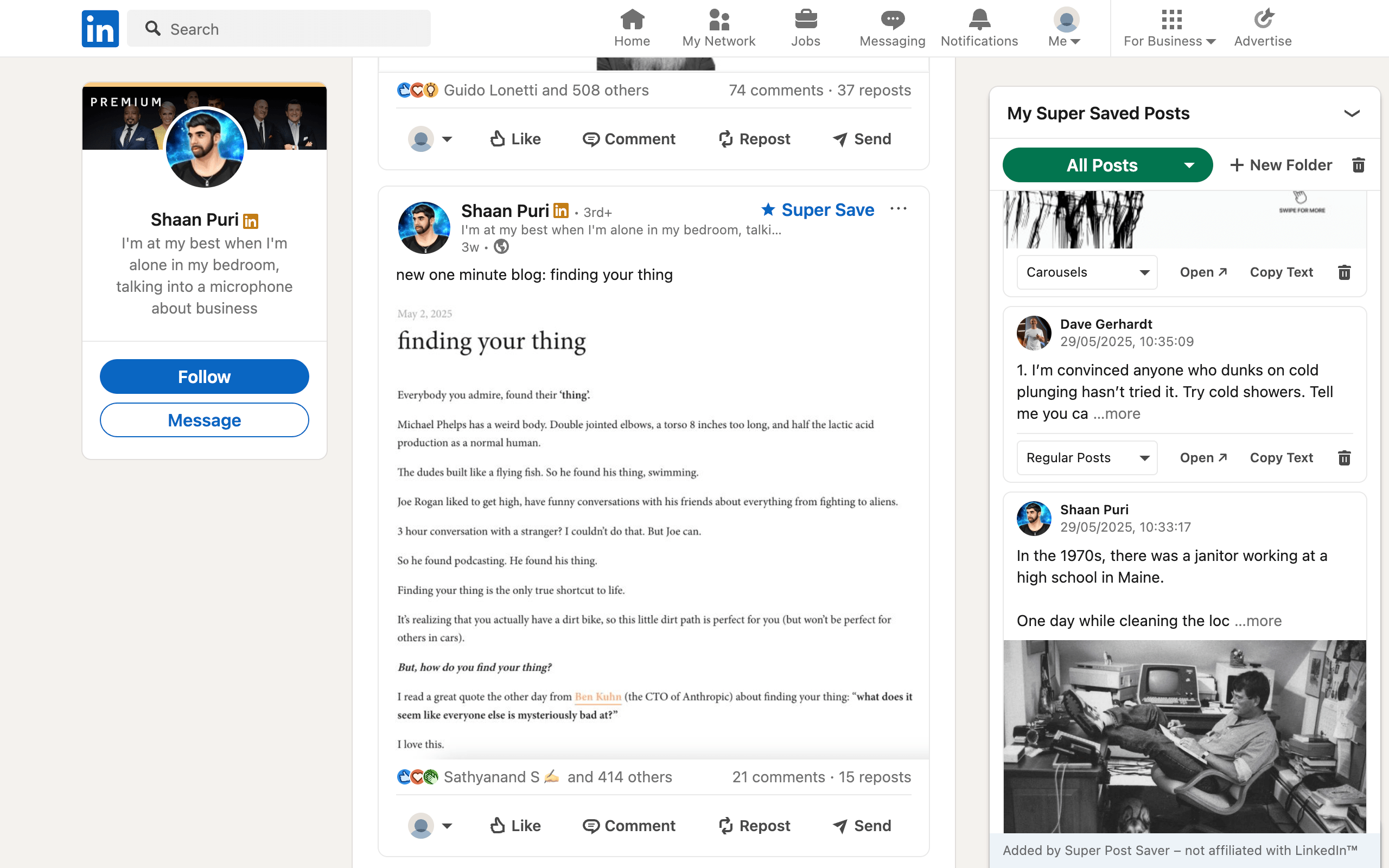
Quick answerInstall Super Post Saver, choose Super Save on a supported LinkedIn post, and select a built-in or custom folder. The post enters a separate local library where you can search its author and captured text. Browser bookmark folders and notes databases also work, but require more manual context.
LinkedIn's official save flow places posts and articles in Saved Items. It is quick, but the current help flow does not describe custom folders for saved posts. When the list becomes a working research collection, you need another layer for categories, projects, or content patterns.
What LinkedIn's native Save is good at
Native Save is the lowest-friction choice, especially on mobile:
- Open the More menu on a post.
- Select Save.
- Return later through Saved Items.
Use it for a short reading queue or posts you may revisit soon. The limitation appears when you need "all carousel examples for Project A" or "every post about onboarding research." A chronological list does not express those intentions.
Method 1: Save into folders with Super Post Saver
- Install Super Post Saver from its Chrome Web Store listing.
- Open LinkedIn on desktop Chrome.
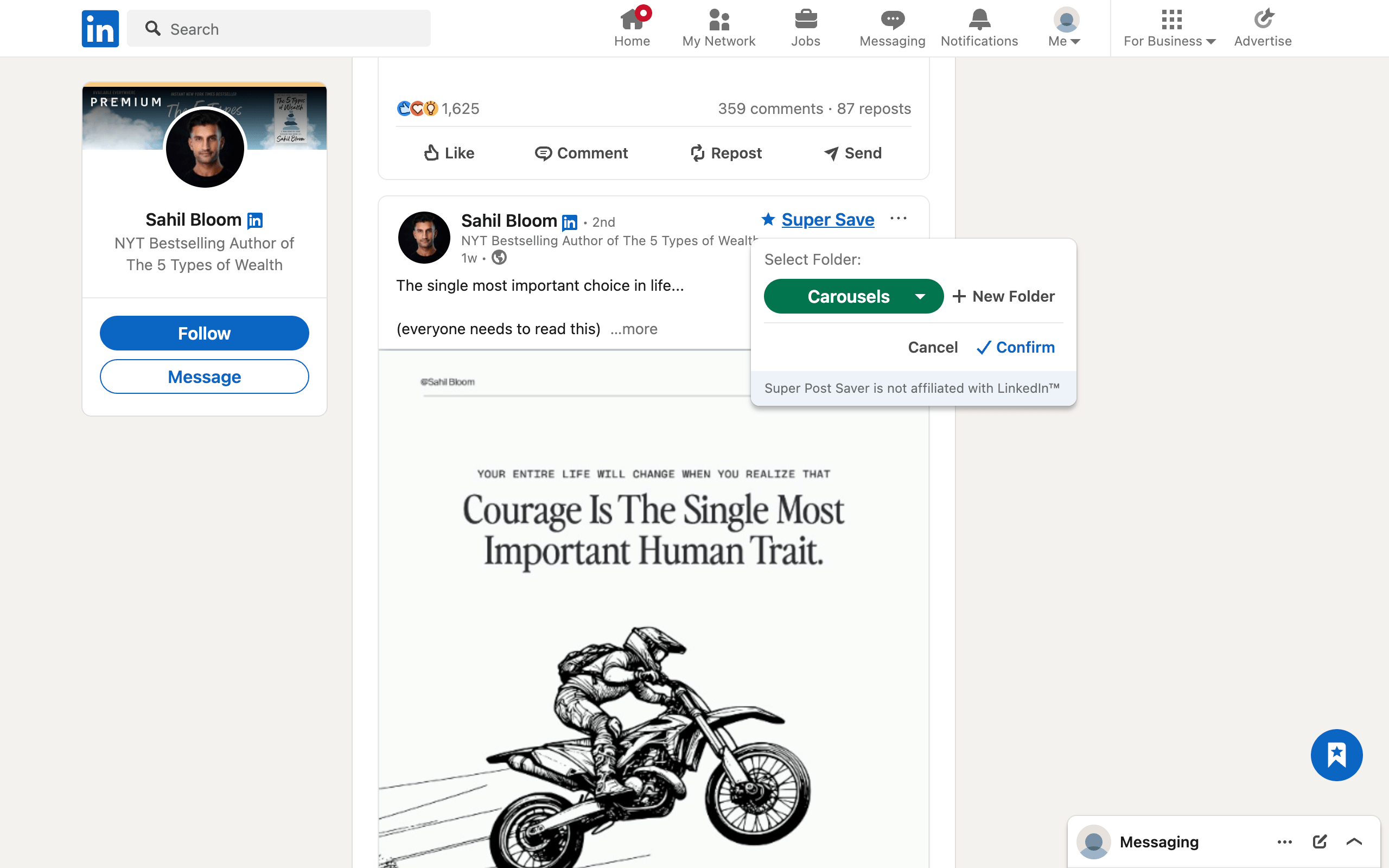
- Choose Super Save on a supported post.
- Select an existing folder or create a custom folder.
- Open the library to search, move, copy, reopen, or delete the saved entry.
The extension captures the visible author and post text and stores the collection locally in the browser. Search works across author and captured words, while folders preserve why you saved something. Export and restore provide a portable backup file.
Best for: people who save LinkedIn posts frequently and want organization without creating another cloud account.
Tradeoffs: it runs in desktop Chrome, does not automatically sync between devices, and does not import your old native LinkedIn saves.
Method 2: Use Chrome bookmark folders
- Open the individual LinkedIn post URL.
- Bookmark the page.
- Create folders such as Research, Hooks, or Clients.
- Edit the bookmark title to include the author and topic.
This method needs no LinkedIn-specific extension and works for pages across the web. Its weakness is context: LinkedIn page titles can be generic, and browser bookmark search may not index the full post body. Renaming every bookmark improves retrieval but adds friction.
Best for: small mixed collections containing articles, websites, and occasional LinkedIn posts.
Method 3: Save links in a notes or database app
Create a table with columns for URL, author, topic, date saved, project, and your own note. This gives the most flexibility and can support teams, cross-device access, and richer commentary.
The cost is manual capture. If saving a post requires switching tabs, pasting a URL, typing the author, and choosing several properties, you may stop using the system. Templates and browser clippers can reduce the effort, but also increase setup complexity.
Best for: research that must connect to project notes, evidence, clients, or a collaborative knowledge base.
Choose folders based on future use
A small useful structure beats a perfect taxonomy. Start with:
- To read for a temporary queue;
- Research for facts, frameworks, and examples;
- Hooks for opening techniques;
- Carousels for visual structure;
- To apply for ideas connected to action;
- one or two active project folders.
Do not duplicate the same category at several levels. If a folder contains fewer than three posts after a month, merge it. If a folder becomes difficult to scan, split it by actual use rather than by abstract topic.
What to do with existing LinkedIn saves
Do not spend a weekend recreating an archive you rarely use. Review the old native Saved Items list in small batches and move only durable references into the new folder system. Start with posts tied to current projects, recurring content work, or evidence you expect to cite.
After that selective migration, use the new method for future high-value posts. The complete folder organization guide explains weekly review and folder maintenance. For a comparison of all three storage models, read LinkedIn saves versus browser bookmarks and post savers.