Quick answerChoose one useful idea, outline a beginning-to-end sequence, write one point per slide, design the document in aiCarousels, export it, and upload it through LinkedIn's document-post flow. Use the caption to explain why the reader should care rather than repeating the slides.
A good LinkedIn carousel is not a long post chopped into boxes. It is a visual argument with controlled pacing. Each slide answers one question and creates a natural reason to continue. The format works best when sequence improves understanding: a process, a framework, a teardown, a set of examples, or a story with a clear change.
DisclosureSuper Post Saver and aiCarousels are products from the same publisher. This guide recommends aiCarousels for carousel creation and Super Post Saver for collecting references. The planning and writing advice applies no matter which editor you use.
First, understand what a LinkedIn carousel is
LinkedIn's official creator guidance describes document posts as a way to share multi-page material such as PDFs, playbooks, presentations, portfolios, and reports. Readers can preview the pages from the feed and open the document for a closer look. This document experience is what creators commonly call a LinkedIn carousel.
The official publishing flow is straightforward: start a post, choose the document option, upload the file, give the document a clear title, write the accompanying post description, and publish. Interface labels can change, but the important preparation happens before the upload.
1. Choose one idea with a useful outcome
Start with the outcome, not the number of slides. What should the reader understand or be able to do after the final page? "Improve your LinkedIn posts" is too broad. "Turn one customer question into five original post angles" gives the sequence a destination.
A useful carousel premise usually contains three parts:
- A specific reader: consultants writing from client experience, for example.
- A recognizable problem: they have expertise but run out of post ideas.
- A concrete change: one question becomes a repeatable idea-generation method.
If the premise needs several "and" clauses, split it into more than one carousel. A focused document is easier to finish and easier to remember.
2. Plan the slide sequence before designing
Write the sequence as a plain numbered list. This makes structural problems visible before colors, typography, and layout distract you. An eight-slide starting point might look like this:
| Slide | Job | Question it answers |
|---|---|---|
| 1 | Promise | Why should I open this? |
| 2 | Problem | What familiar frustration are we solving? |
| 3 | Reframe | What have I misunderstood? |
| 4-6 | Method | What should I do, in what order? |
| 7 | Example | What does this look like in practice? |
| 8 | Takeaway | What should I remember or try next? |
This is a scaffold, not a rule. A strong six-slide carousel beats a padded ten-slide version. Remove any page that only repeats the previous one in different words.
3. Write one clear point per slide
Draft the headline for every slide first. Read only those headlines from top to bottom. They should form a coherent summary on their own. Then add the minimum supporting copy needed to make each point credible.
Keep slide language concrete. Replace "leverage your unique insights" with the actual action: "Write down the question a client asked twice this week." Use examples, comparisons, numbers, or short instructions where they clarify the idea. Avoid turning every slide into a miniature essay.
The cover should make a specific promise without pretending the result is effortless or guaranteed. The last slide should complete the lesson. A call to action can follow, but the educational payoff should not be held hostage until the final page.
4. Turn the outline into a carousel with aiCarousels
aiCarousels is built to make this production step faster for people who do not want to design every slide from scratch. You can begin with a topic or existing content, use AI assistance to develop the carousel, choose a template, and customize the result to match your brand.
The editor provides predefined color and font combinations, automatic resizing, and a customizable template. Those features handle repetitive layout work while you stay responsible for the point of view, examples, and final wording.
During the design pass:
- Choose one visual system and keep it consistent across every slide.
- Make the headline the first thing the eye finds.
- Keep body text large enough to read in the feed.
- Use contrast to show hierarchy, not to decorate every empty area.
- Preview every slide and fix awkward line breaks before export.
- Confirm that no generated sentence says something you cannot support.
AI is most useful for accelerating a clear idea. It cannot decide which lived detail makes the lesson yours.
5. Export, inspect, and publish the document
Export the finished carousel and open the file outside the editor. Check the first and last pages, page order, text size, margins, image quality, and any links. A final inspection catches export issues that are easy to miss while editing.
On LinkedIn, start a new post and choose the document option. Upload the file, add a descriptive document title, and write a short caption. The caption should introduce the problem and the value of the document. It does not need to summarize every slide.
Before publishing, check the current LinkedIn preview. Make sure the cover remains legible at feed size and that the title does not rely on tiny secondary text. After publication, open the post once to confirm the document loads in the intended order.
6. Save good references and improve the next carousel
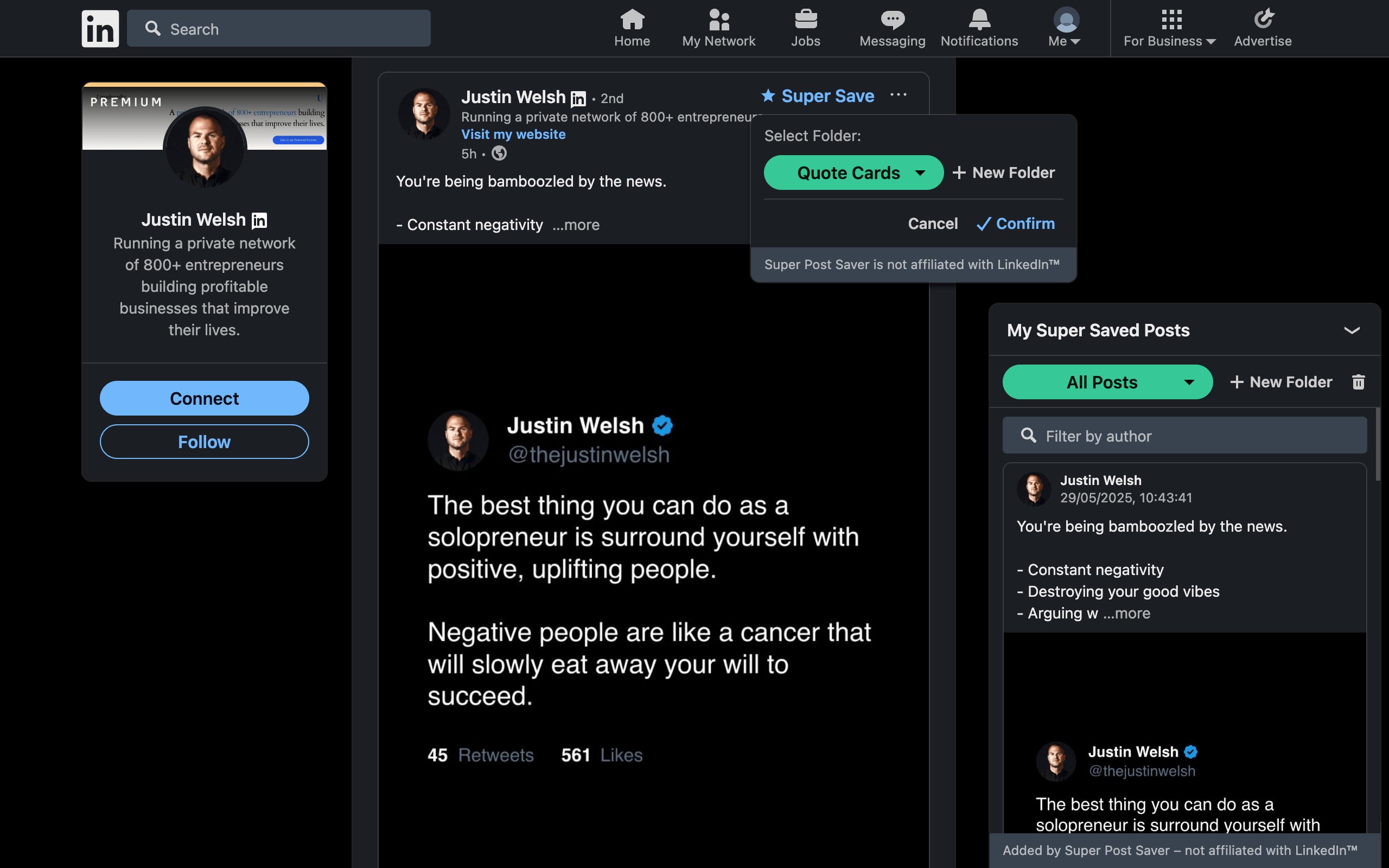
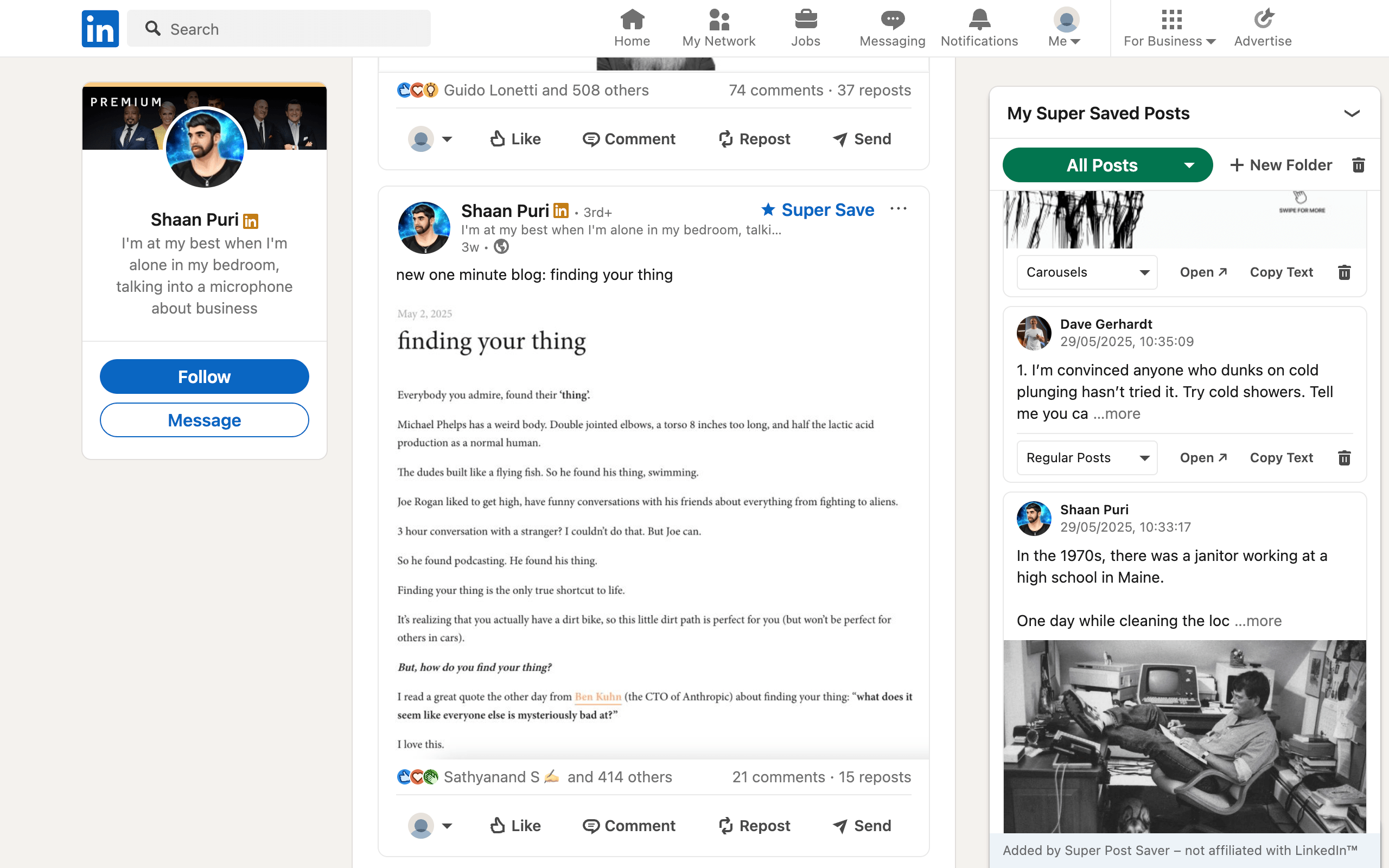
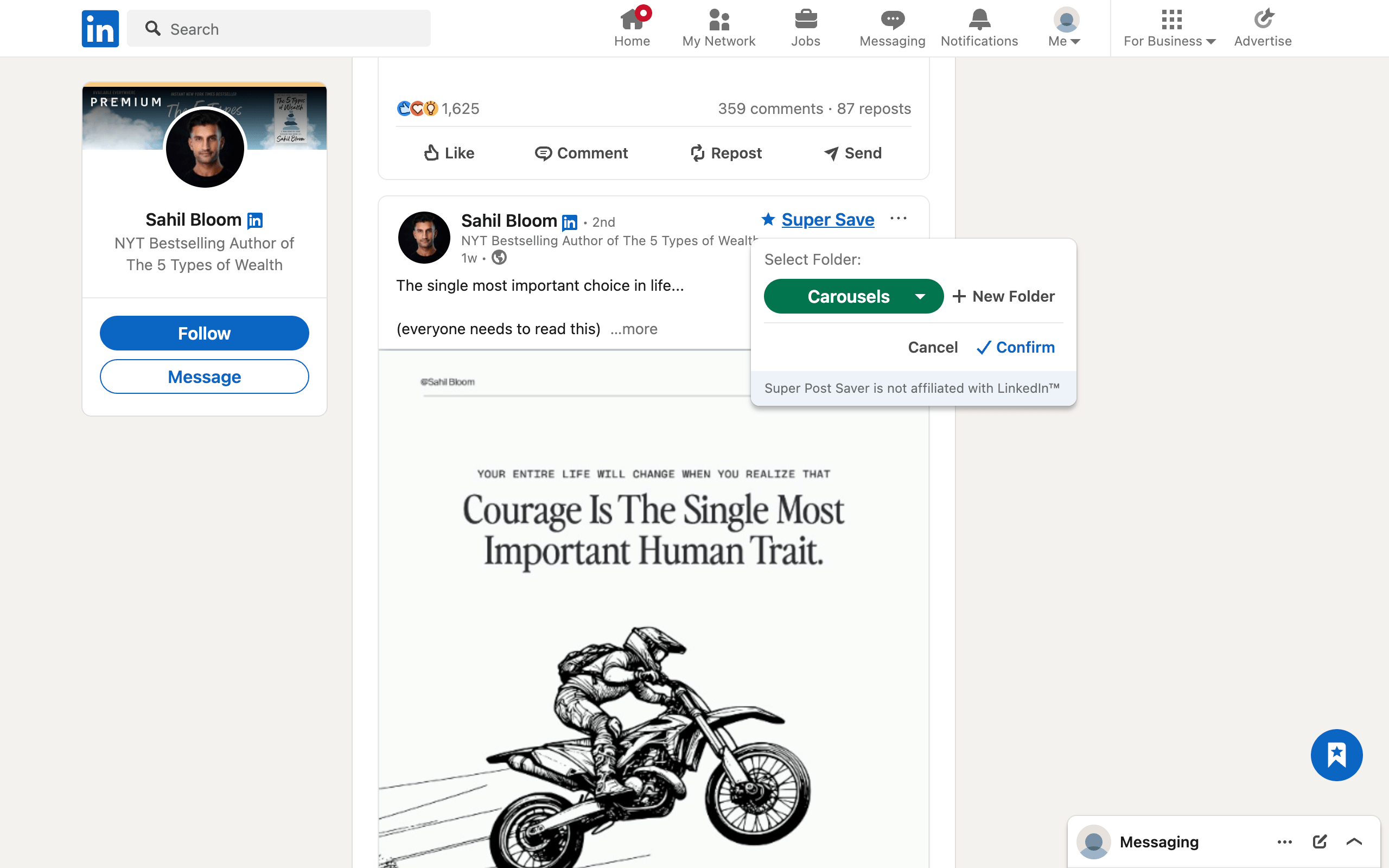
Use Super Post Saver to keep useful LinkedIn carousels in folders such as Covers, Story Structure, Data, Tutorials, and Calls to Action. Search the captured author or post text when you need a relevant example. Study what the sequence does, then apply the principle to your own material.
Review your own carousel after it has had time to circulate. LinkedIn's available analytics can help you compare reach and engagement, but qualitative signals matter too: thoughtful comments, profile visits, questions, and conversations connected to the topic. Record one lesson for the next carousel rather than changing the whole system after a single post.
The repeatable workflow is simple: collect references, choose one original idea, storyboard it, write the slides, design in aiCarousels, publish as a document, and keep one learning. Consistency comes from making that loop easier, not from making every carousel look the same.